Find a free room
The day or the week for every room; filters for seats and equipment.
Room booking system
Staff find a free room, book it, and the booking office approves it - and the booking appears at once everywhere: on the web, in staff calendars, on phones, on the screens in the corridors and on the panel beside the door. In the browser, with nothing to install.
The room overview shows every room against the hours of the day, or a whole week, with what is booked and what is free. Filter it by seats or by equipment - a projector, a video link, microphones - and only the rooms that fit stay. Reading it needs no account; booking does.
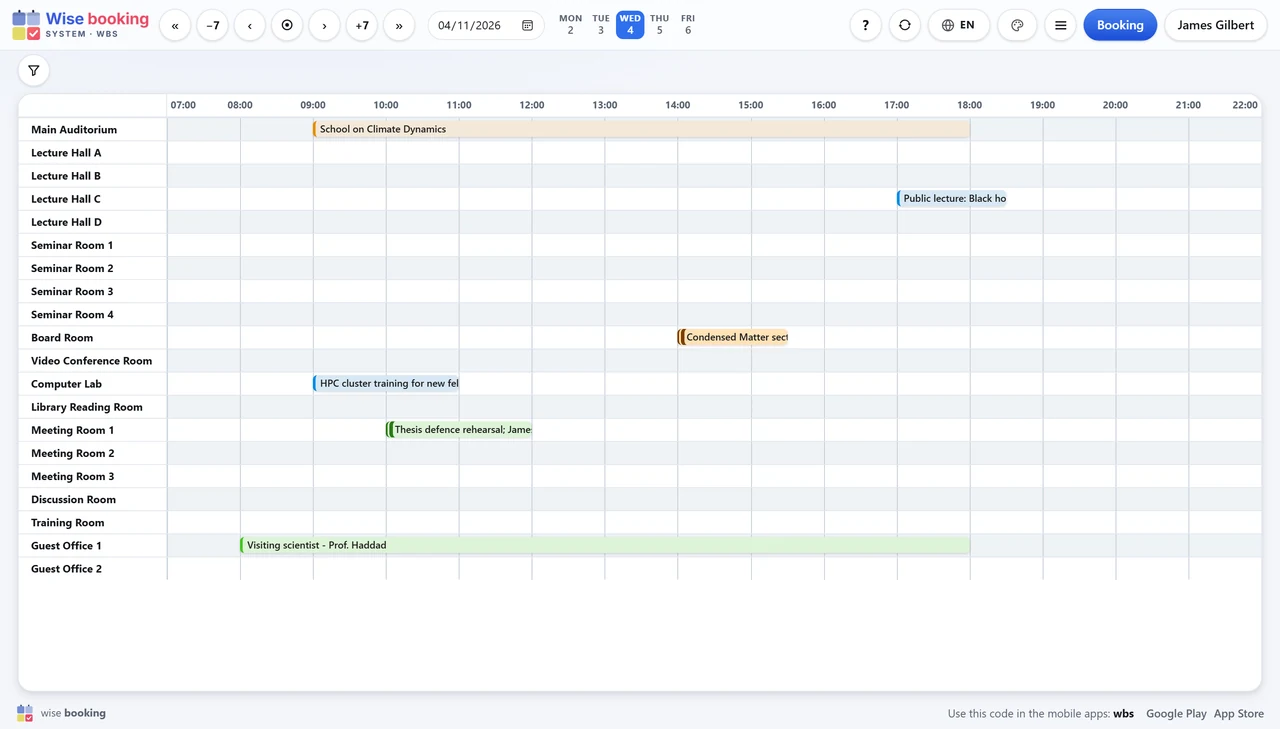
One web application for the people who book, the booking office that decides, and the screens that show it.
The day or the week for every room; filters for seats and equipment.
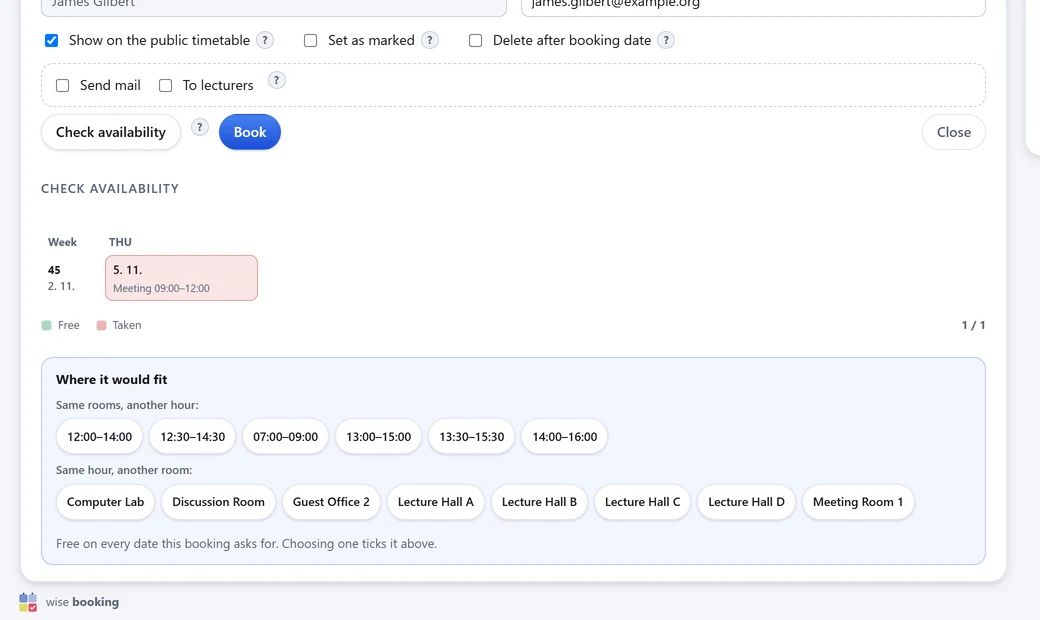
Every date is checked before saving; a clash comes with free hours and free rooms instead.
Days in a row, every week, every second or third week, monthly - every date shown first.
New bookings wait for the booking office, already holding the room; the letter says what was decided.
Each person may book every room, or only the rooms ticked for them.
Outlook, Google or Apple Calendar - one booking, or a subscription that updates itself.
Today's bookings on any screen in the building: a flow of now and next, or a grid of rooms.
One room, free or in use - and booked on the spot, on the screen or with a phone.
Room utilisation and every booking by date, to Excel, PDF or print.
Rooms, people, equipment, administrators and sign-in, behind one cog.
Staff use the account they already have; WBS reads no mail or files.
Rooms, bookings and free hours for the institution's other systems.
Four steps, and the last one happens by itself.
On the room overview, by seats and equipment - or start from the booking form and let the check suggest one.
Day, hours, room, description; repeat it if it repeats. Check availability shows every date free or taken before anything is saved.
Where approval is on, the booking waits - holding its room - until the office confirms or refuses it, with a letter to the person.
On the room overview, in calendars that follow it, on the phones, on the signage displays and on the panel beside the door.
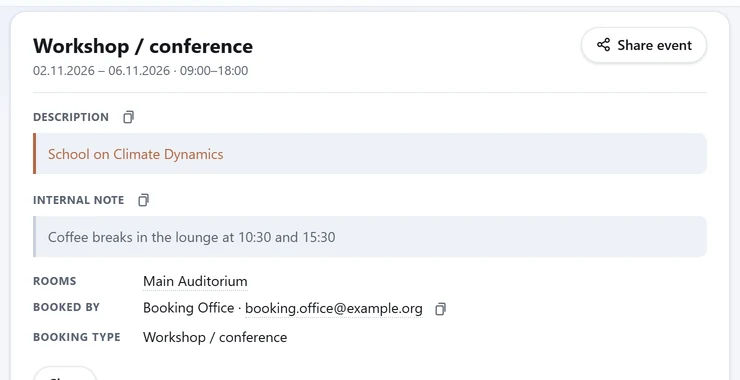
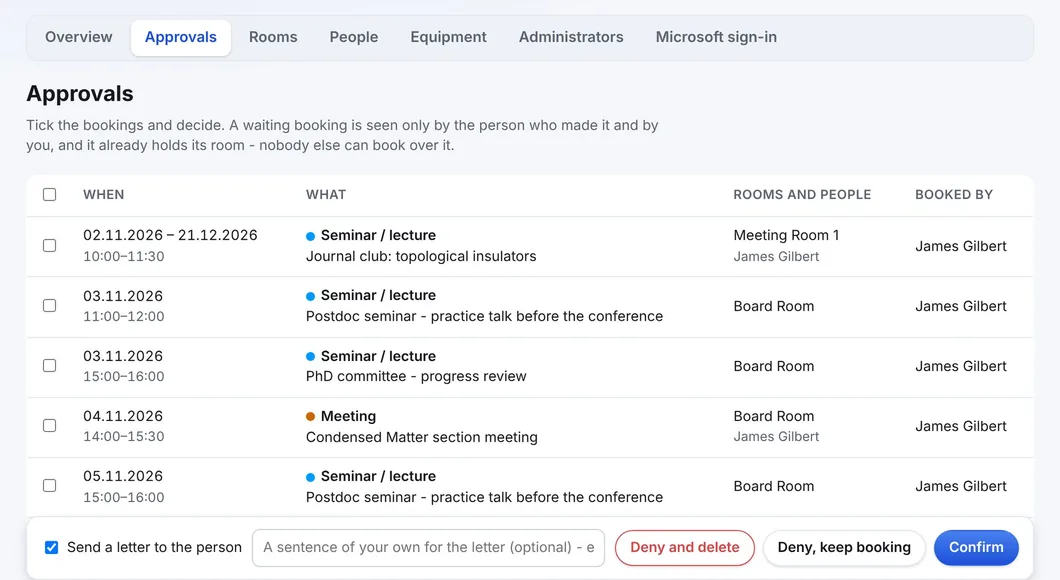
Approval is optional and switched on in one place. New and changed bookings then wait for the booking office: Confirm, Deny but keep the booking, or Deny and delete - with one letter per person, and a sentence of your own if you wish. A waiting booking already holds its room, so nobody books over it. More about approvals.
Any room, person or selection can be followed from Outlook (Microsoft 365), Google Calendar or Apple Calendar. A subscription updates itself: a booking changed in WBS changes in the calendar. More about calendars and phones.
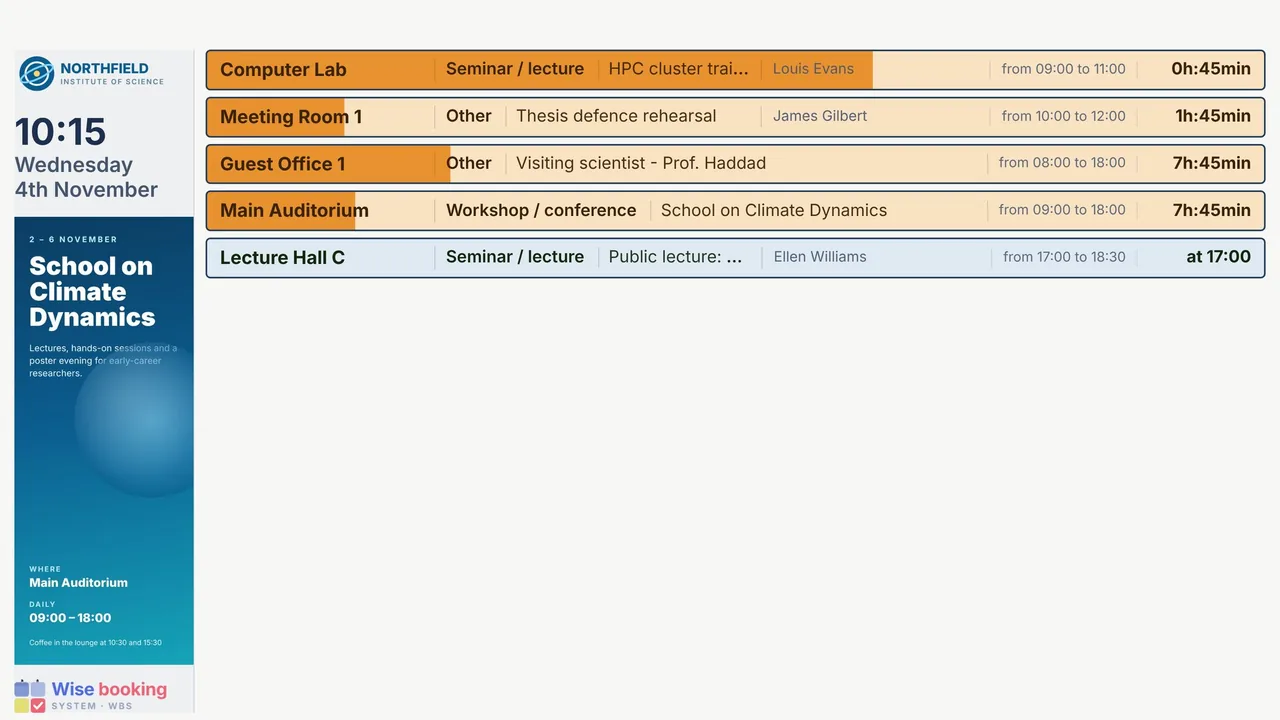
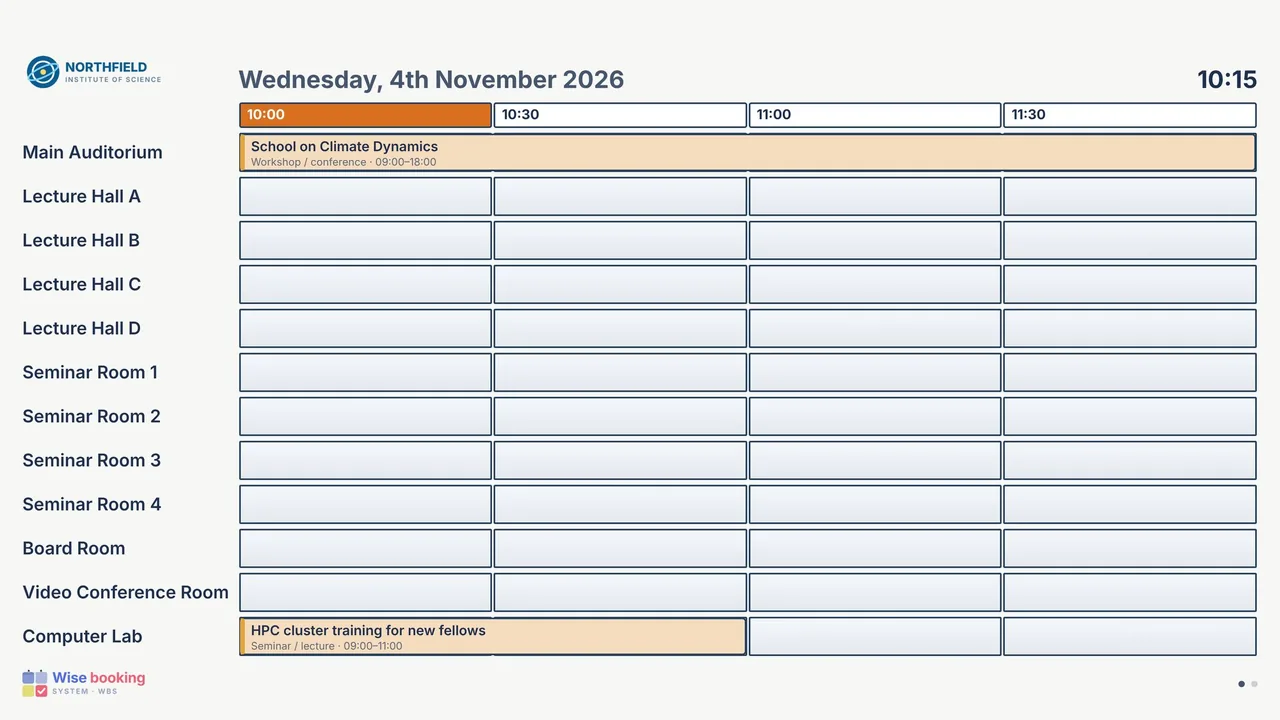
A signage display is a web page for a television in a lobby or a corridor: any smart TV, stick or small PC with a browser, in full screen. It refreshes itself all day, keeps its shape when the network drops, and a renamed display keeps answering at its old address. Light or dark, text size, a message - per display. Each display can also carry the institution's own pictures for events and announcements: a corner picture, a poster beside the bookings, or full-screen posters that take turns with them. More about digital signage.
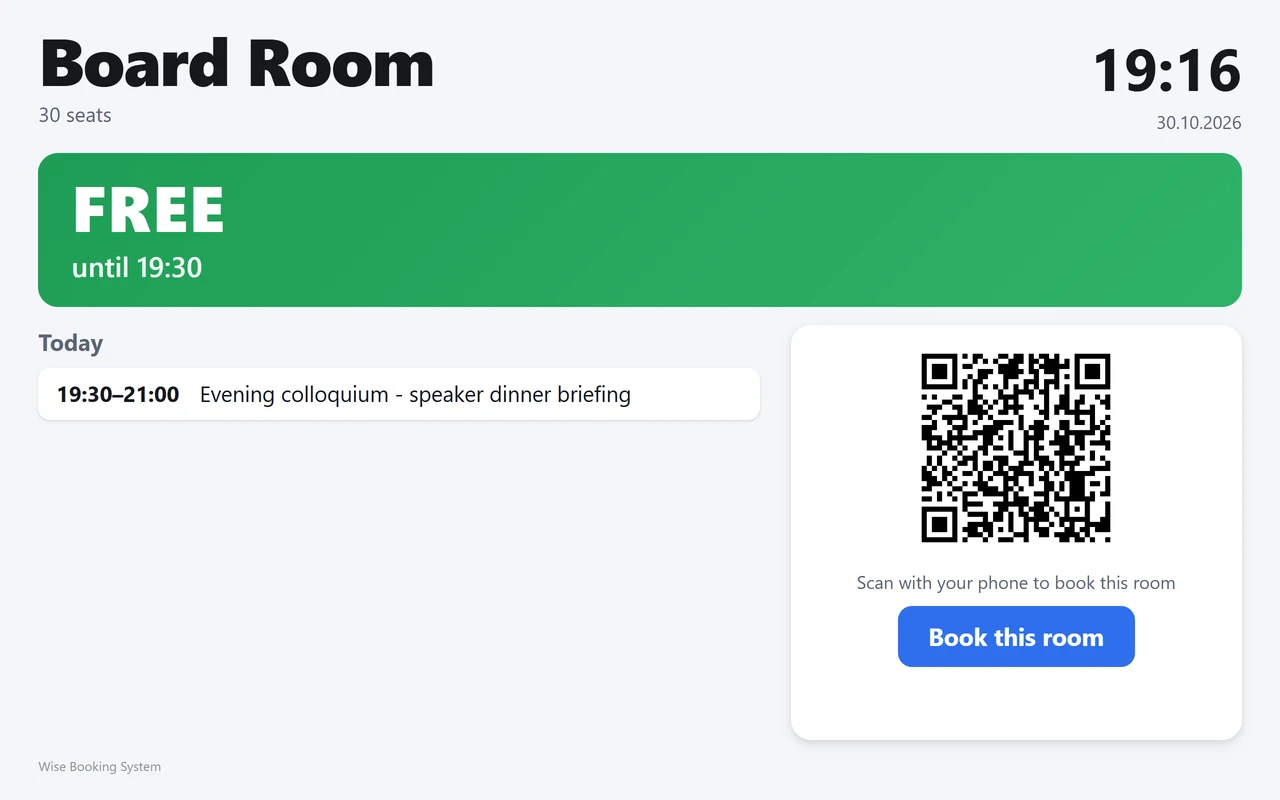
A tablet by the door shows that one room - free or in use, until when, and today's bookings - and books it on the spot: on the screen, or by scanning the QR code with a phone. More about room panels.
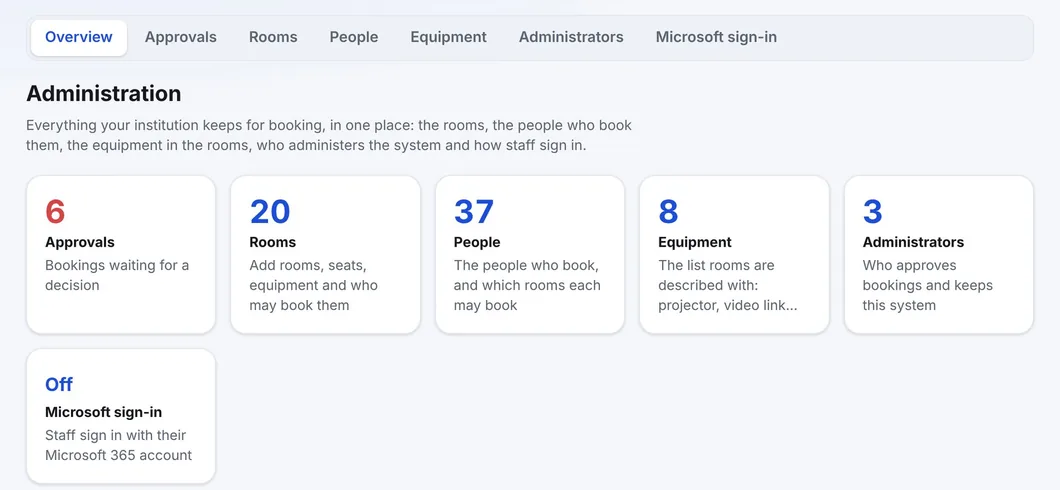
Everything WBS keeps is maintained in the browser by the institution's own administrators: rooms with seats and equipment and who may book them, the people who book and the rooms each may book, the equipment list, the administrators themselves, and Microsoft sign-in. There is no other program to install. More about the administration.
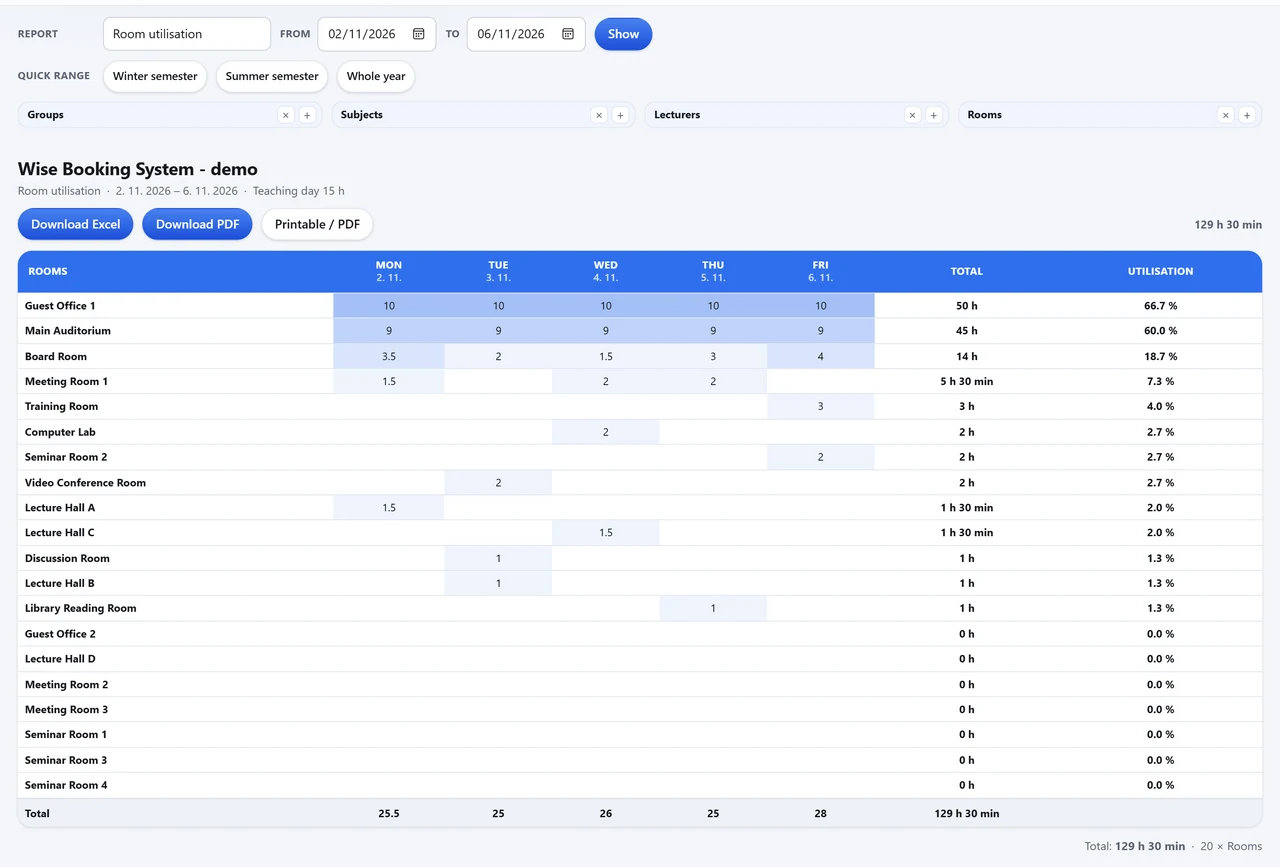
Room utilisation puts rooms against days, shaded by load, with totals and percentages - unused rooms included, because which rooms are we not using is the question. Every report downloads to Excel or PDF, prints with the institution's letterhead, and a list of bookings can be subscribed to as a calendar. More about reports.
What IT usually asks first. The REST API and integrations.
| Topic | In WBS |
|---|---|
| REST API | Everything WBS shows is available through a documented REST API (JSON over HTTPS): rooms, booking types, free and busy, bookings, approvals. Writes follow the same rules as the booking form. |
| Microsoft 365 | Staff sign in with their Microsoft 365 account (OpenID Connect with PKCE). Only the institution's own tenant is let in; WBS asks for openid, profile and email and reads no mail, files or directory data. |
| Calendars | Subscriptions for Outlook, Google Calendar and Apple Calendar, and .ics downloads. |
| Your website | The room overview embeds in the institution's own website. |
| Hosting | A cloud service run by Wise Technologies, with updates and daily backups; where policy requires it, it can also be installed in the institution's own network. |
| Security and privacy | Wise Technologies holds ISO/IEC 27001:2022. All traffic is HTTPS. The institution is the controller, Wise the processor; a data processing agreement is available. Security and privacy. |
A new institution is usually live within a few days. Wise does the setting up; the booking office decides.
Wise creates the institution's WBS address and code, with its language, time zone and logo.
Sent as a spreadsheet and imported by Wise - or entered in the administration.
Booking types and colours, who may book which rooms, whether bookings need approval.
Passwords or Microsoft 365; the displays and door panels; an online session for the booking office.
Every part of WBS has a page of its own, and the full manual is free to read.
No. WBS runs in any current browser on a computer, tablet or phone; signage displays and room panels are web pages too. The mobile apps are optional.
No. Every date is checked before saving, and a booking waiting for approval already counts as taken.
Yes: the live demonstration is open, with twenty invented rooms. For your own rooms, request a demo.
They are on the questions page.
Book an online presentation. We set up your rooms and your booking rules, and a new institution is usually live within a few days.