Room panels
A room panel: the room's own screen, beside its door
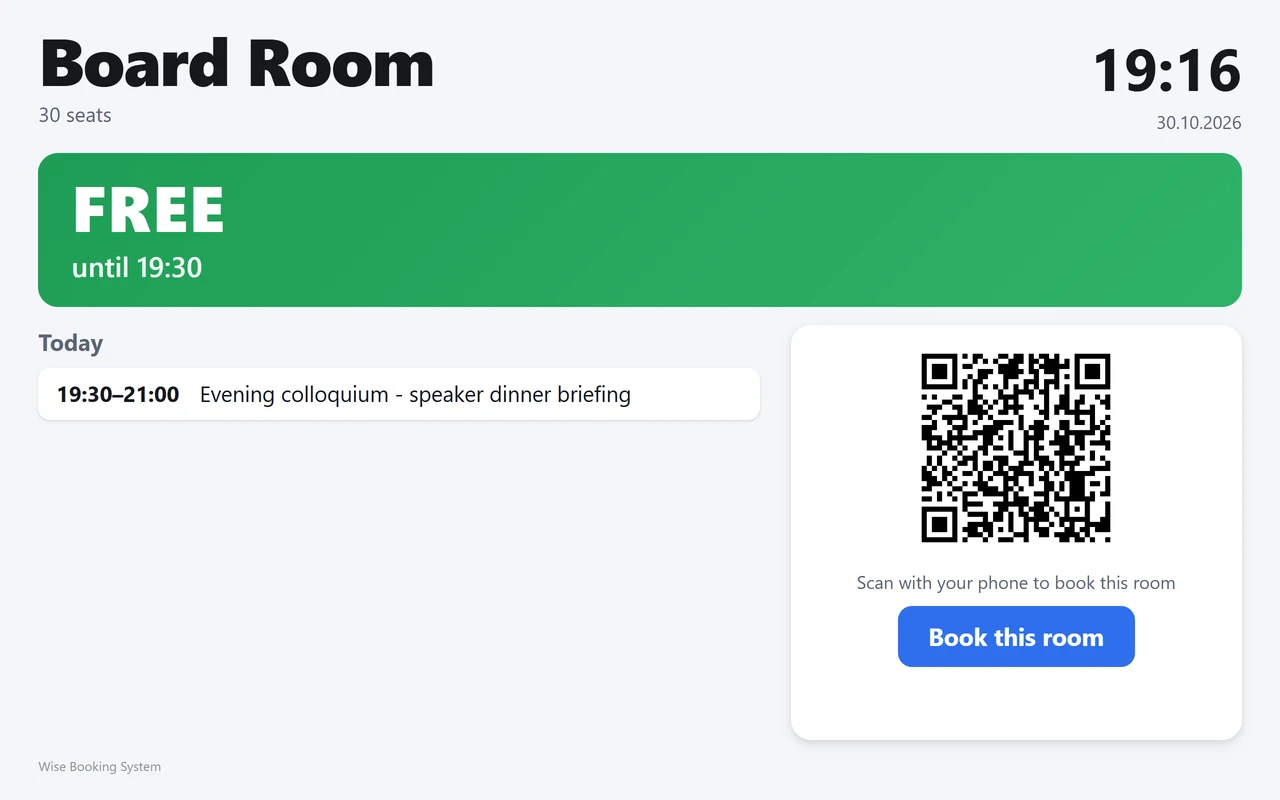
A tablet on the wall, or any screen with a browser, shows one room - free or in use, until when, and today's bookings - and lets people book that room right there: on the screen, or with their own phone.
- Signage and a booking desk for one room
- Booking on the screen or by QR code
- Signs itself out after every booking
- The same rules as the website
What the panel shows
The room's name and seats and the clock; a large band - FREE in green, until the next booking or for the rest of the day, or IN USE in red until the room is free again; today's bookings; a QR code and a Book this room button. It refreshes itself every minute and shows confirmed bookings only.
Booking at the door: three questions
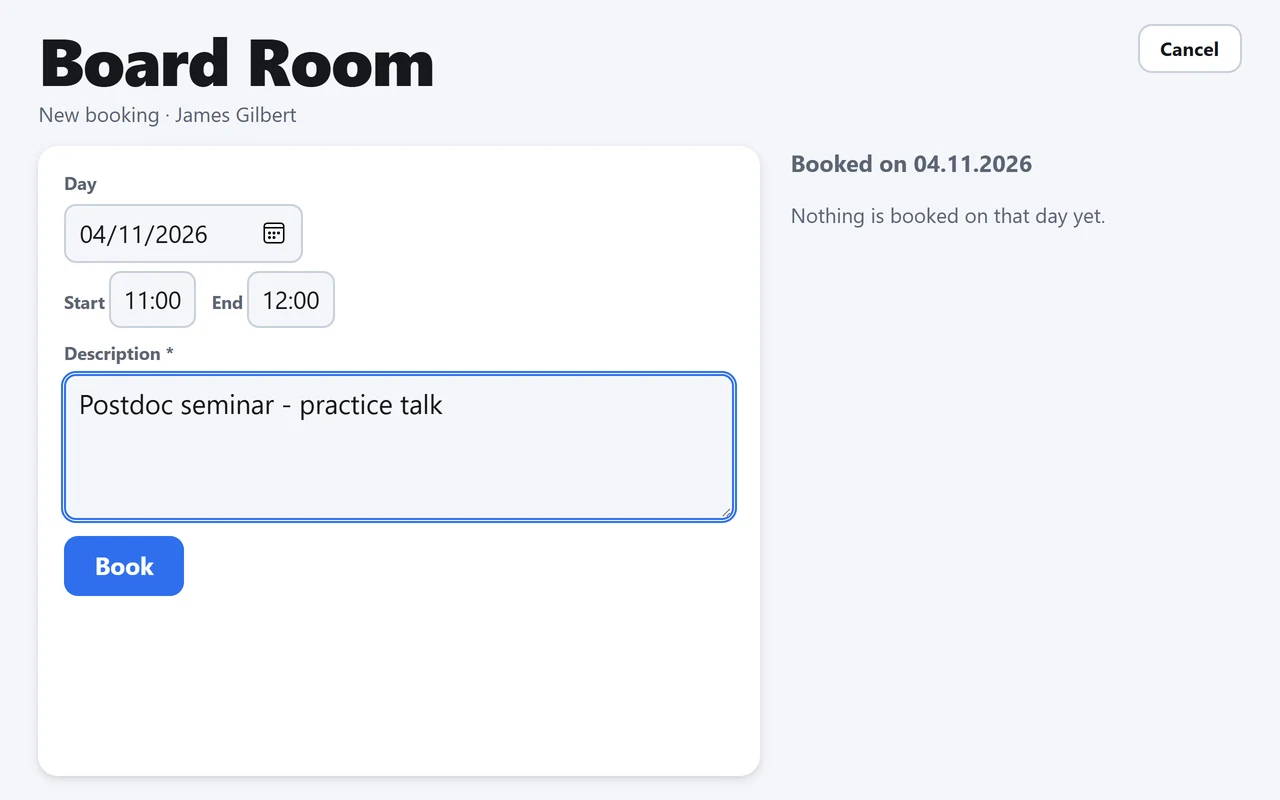
A booking made at a panel is always for that room, so the form asks only the day, the start and end, and a description. Choosing a day shows at once what the room already holds that day. After the booking the panel signs the person out by itself; an untouched form does the same after two minutes, so a shared screen never stays signed in.
Or with a phone
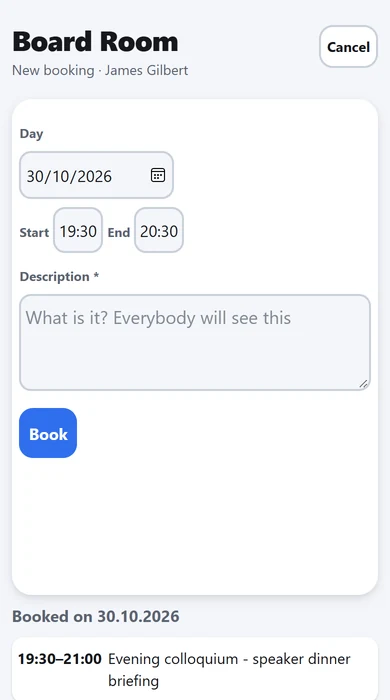
Those who would rather not type a password on a wall screen scan the QR code: the same short form opens on their own phone, for the same room, and the phone stays signed in - it is theirs.
Not a back door
Every booking made at a panel passes the same checks as a booking on the website: a time already taken is refused, a person may book only the rooms their account allows, bookings outside the booking period are refused, and bookings that need approval go to the booking office first.
- Mount a tablet or small screen beside the door and open its browser in full screen
- Open the room's address - the room is found by its name, ignoring capitals, spaces and punctuation, or by its code
- Nothing to install and no licence per screen; the address keeps working when bookings change
See WBS with your own rooms
Book an online presentation. We set up your rooms and your booking rules, and a new institution is usually live within a few days.