Administration
A self-contained administration, behind one cog
Everything an institution keeps for booking is maintained in the browser by its own administrators: rooms, people, equipment, administrators and Microsoft sign-in. There is no other program to install.
The state of the system in one look
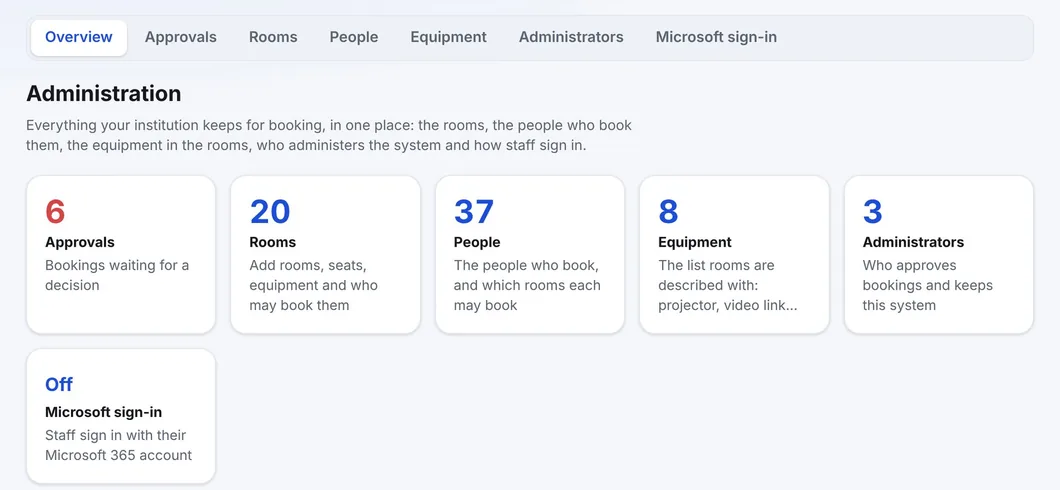
The cog appears for a signed-in administrator, to the left of their name. Its Overview counts the bookings waiting, the rooms, the people, the equipment and the administrators, and says whether Microsoft sign-in is on - each card opens its own tab.
Rooms
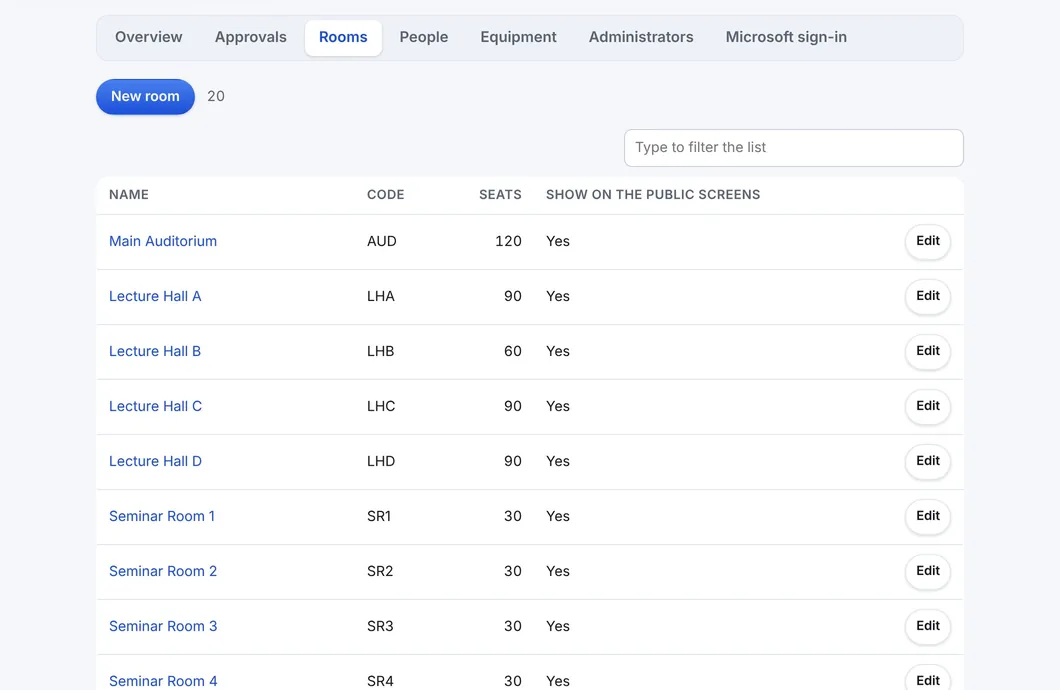
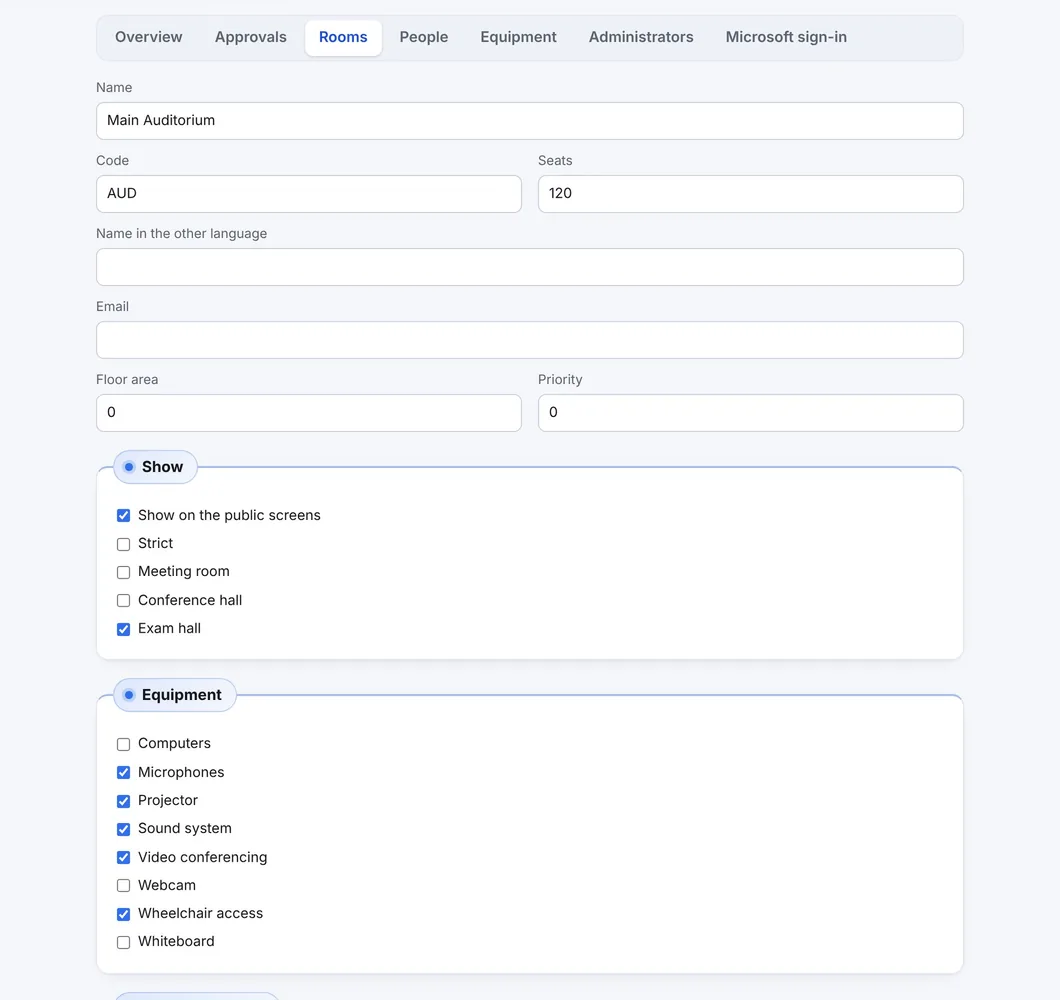
Each room has a name and code, seats, an optional e-mail address (a caretaker or technician then receives the letter for every booking in it), whether it is shown publicly, what kind of room it is, its equipment, and who may book it. A room that still has bookings cannot be deleted; WBS says how many are in the way.
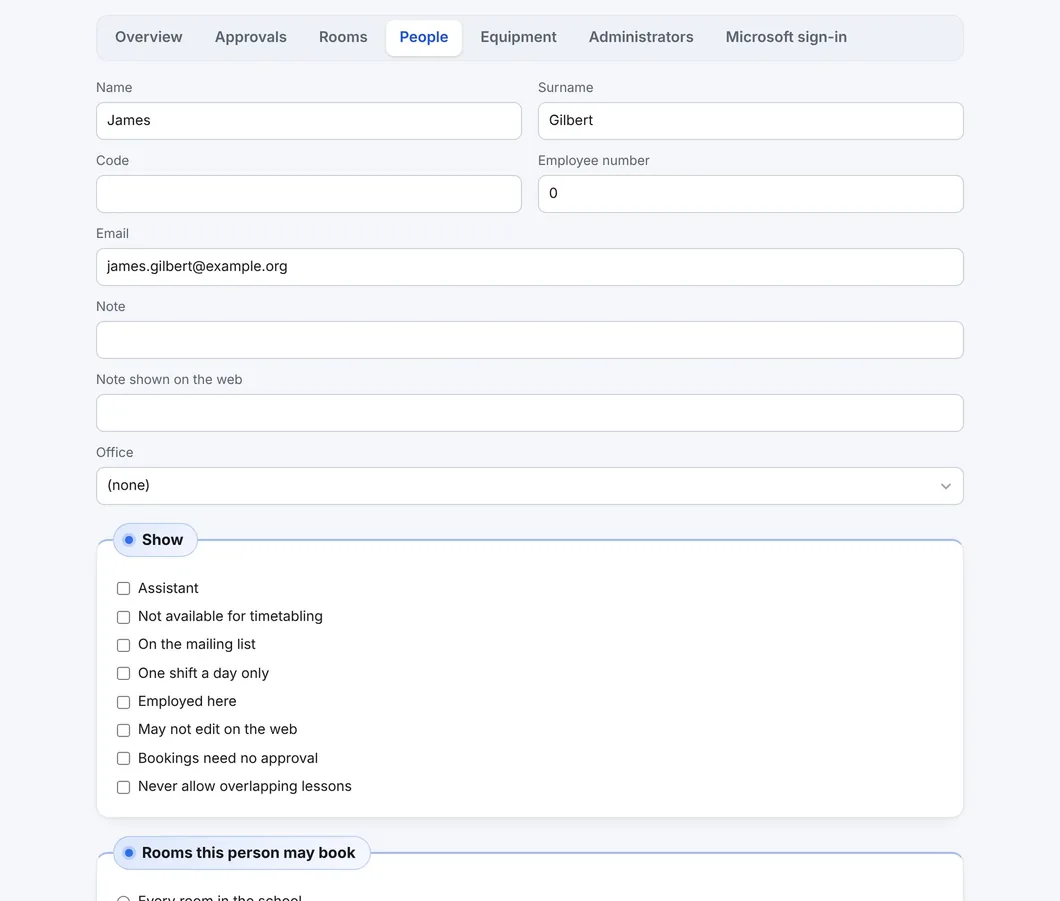
People, and the rooms each may book
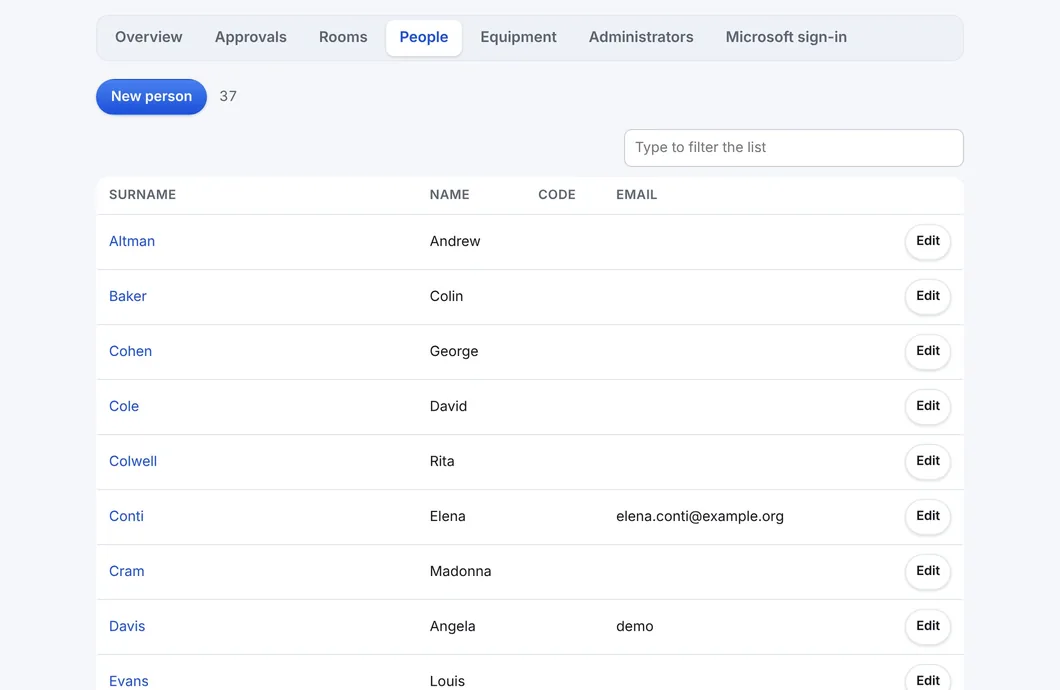
A person record holds the name, an e-mail address - the user name, the address for booking letters and the one Microsoft sign-in matches - and the rooms the person may book: every room, or only the rooms ticked. A trusted person's bookings can skip approval.
Equipment
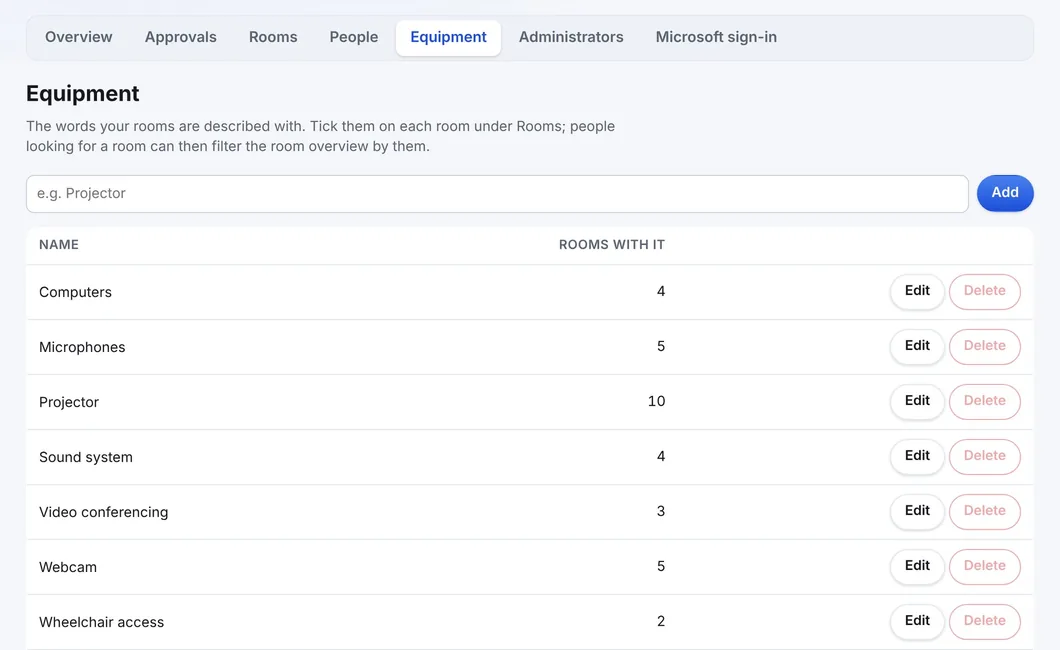
The words rooms are described with - projector, microphones, video conferencing. Renaming a word renames it everywhere; each word shows how many rooms carry it. Staff filter the room overview by it.
Administrators and passwords
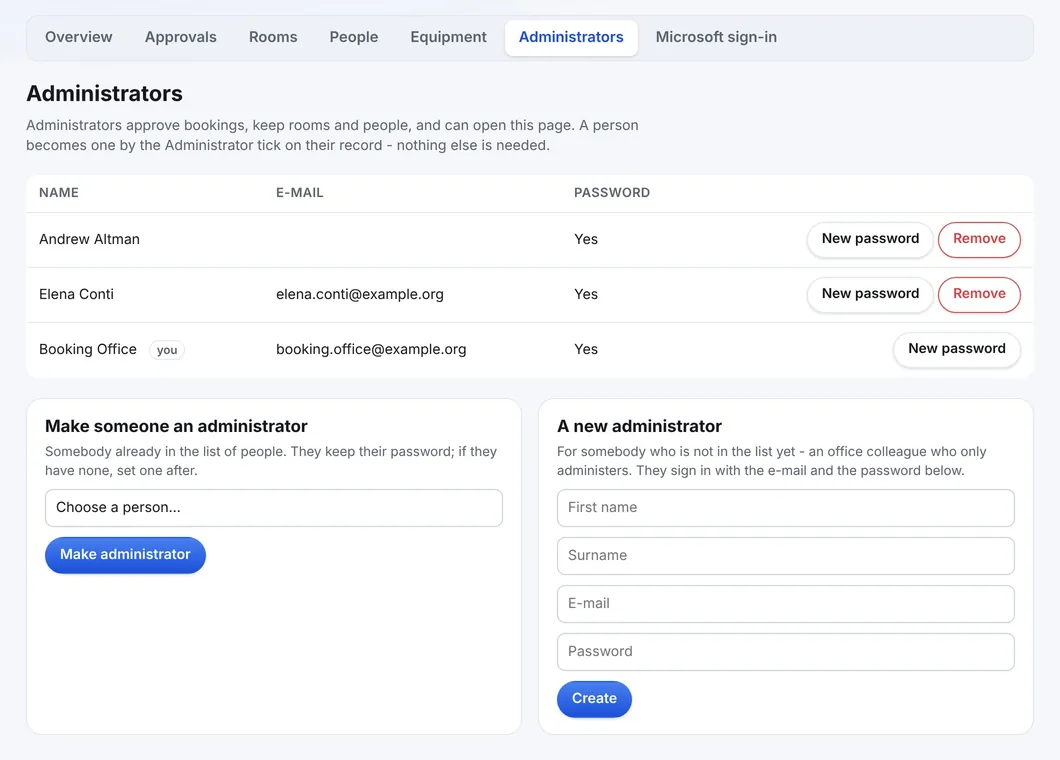
A person becomes an administrator by the Administrator tick on their record. Administrators give passwords (at least ten characters; replacing a working one is a separate, deliberate act), make an existing person an administrator, or create a new one who only administers. Nobody can remove their own tick, and the last administrator cannot be removed. No screen and no API answer ever shows a password.
Every change is checked twice
The screens decide nothing on their own: every save is checked again by the server against the same rules, and a refusal is a sentence that says what to change. When two administrators edit the same room at the same moment, the second is shown the first one's version instead of overwriting it.
The institution-wide settings - approval, booking types, look and feel, signage displays and mail - are under Settings, beside the administration.
See WBS with your own rooms
Book an online presentation. We set up your rooms and your booking rules, and a new institution is usually live within a few days.