
Publishing
Messages for your campus screens
The open day, the closed library, the welcome to new students: composed once in the browser and shown on the screens that already show the timetable.
A message is a small canvas
A message is a layout of up to four zones, and each zone holds one thing: a picture, a YouTube video, a PDF, a piece of HTML or a headline. It is written and corrected on its own, without any screen in sight, and the same message can be shown on as many displays as you like.
On the screen it takes the whole display for a few seconds, in turn with the timetable, and then the timetable comes back. A display with no message looks exactly as it always did.
- Seven layouts: one full-screen zone, two columns (50/50 or 70/30), two rows, one large zone with two stacked beside it, four quadrants, or a header strip over one large zone
- A picture, a YouTube video (muted, in a loop), a PDF, a piece of HTML or a headline in each zone
- A PDF is shown page by page, up to thirty pages, so the poster the events team already made can go straight up
- A message can be switched off, and given a date window so that an open-day notice is not left up by mistake
- Chosen per display: which messages it shows, for how many seconds and in which order
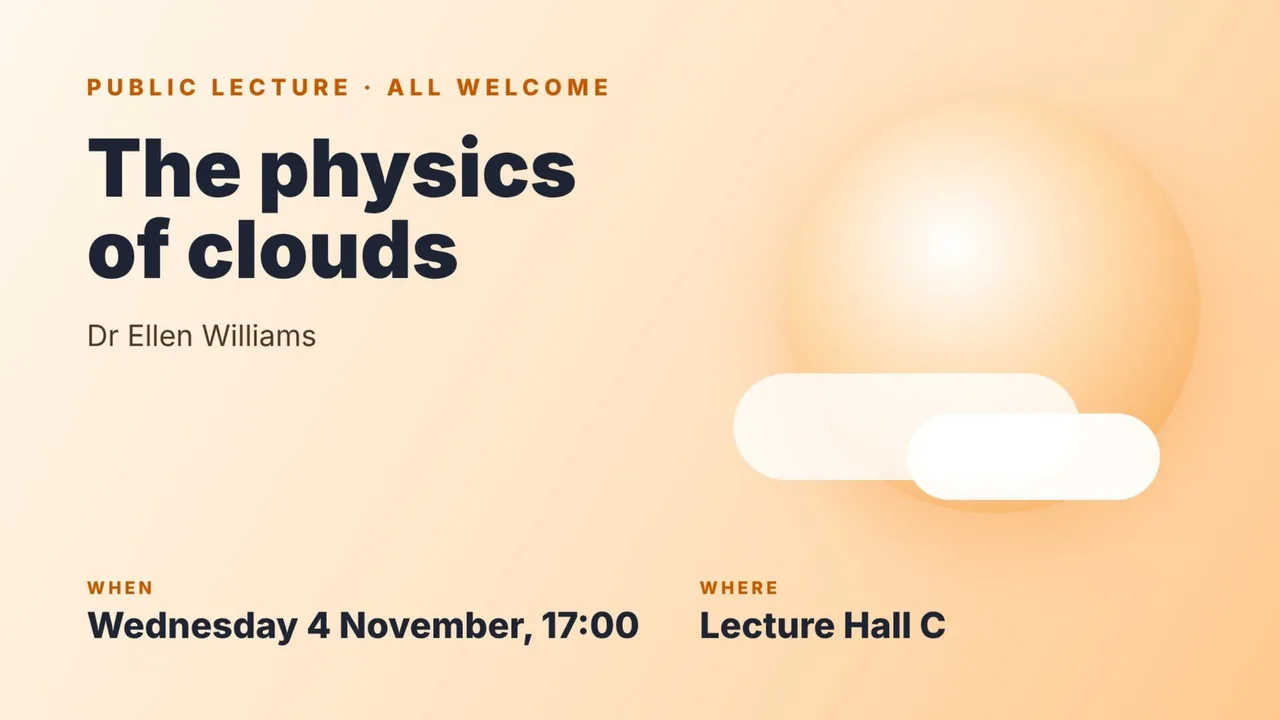
From a blank canvas to the wall
Four steps, all in the browser. Nothing is installed on the television. The guide Using Signage Displays (in Slovenian) shows every screen with pictures.
Compose the message
Under Settings, Messages, start a new message, choose a layout and fill the zones. The editor draws a preview as you go.
Set its life
Give it a name, switch it on, and where it should only run for a while, set the dates it is valid between.
Give it to displays
In a display’s own settings, tick the messages it shows, and set how many seconds each stays and in which order. The fullscreen message on a display can be a picture, a PDF or one of your messages.
Let it take its turn
The screen shows the timetable, then the message, then the timetable again. A change is picked up when the display next reloads, within the reload time set for that display.
What it is, and what it is not
Messages are for the things a campus wants said on the screens people already look at. They are not a general signage playlist: there are no weather widgets, social feeds or live streams, and a message takes the whole screen in turn rather than sitting beside the timetable.
Where a poster should stay in view beside the timetable for days, a display also has a side picture and a corner image, set on the same screen. Messages themselves are made by the school’s configuration administrators; everybody else sees only the result.
Messages on screens: questions
Who can create messages?
The school’s configuration administrators, under Settings, Messages. Nobody else sees that tab; everyone else sees the result on the screens.
Can a message use a PDF or a video?
Yes to both. A PDF is drawn page by page, up to thirty pages, and each page is shown in turn. A YouTube video is pasted as a link or an 11-character id and plays muted, in a loop.
Is a message shown beside the timetable or instead of it?
In turn with it. The display shows the timetable for the time you set, then the message, then the timetable again. For something that should stay in view beside the timetable, use the display’s side picture.
Do we need anything on the television?
No. A display is an address opened in a browser, as before, so there is no separate player to install and no per-screen licence. Digital signage displays shows how one is set up.
Does it cost extra?
Messages are part of the digital signage that comes with the licence; there is no separate price for them. Pricing explains what a licence is priced on.
See Wise Timetable on your own data
Book a 45-minute online presentation. We will walk through your institution's scheduling problem, show how Wise Timetable handles it, and answer anything your team wants to test.