Guides
Guide for lecturers
Everything a lecturer does in Wise Ed is on the school’s timetable site, under the same sign-in as for booking a room. The menu then holds My overview, My exams and grades, My work report, My messages and the other pages your school has switched on. The question mark in the top bar opens the PDF guide.
- Your own records, subjects and month only
- Save as often as you like; nothing is handed in until you say so
- Works on a phone as well as on a computer
The guide as a PDF
A short guide with pictures, for grades, the monthly report and messages: lecturers’ guide (PDF), also in Slovenian and Croatian.
Grade an exam record
Open My exams and grades
It lists the exam records on which you are an assessor, newest first, with how many students are graded. Coursework below it lists your subjects’ obligations and who has met them.
Open a record
Each student has a row with the attempt, the registration, the coursework and the result.
Enter the results
Choose each result from the school’s grade scale, or Did not attend; Tab moves to the next student. Where the subject has an assessment scheme, the points propose the grade.
Save grades
Save as often as you like — a blank stays blank. If the school’s rules ask about a grade, read the question and save anyway or correct it. A grade you change keeps its reason.
Hand it in
When every grade is in, hand the record to the student office — or sign it off yourself, where the school allows it — by the date the screen gives. PDF to print prints it for the signatures. After sign-off a correction goes through the office.
Set an assessment scheme
Your school decides who defines a subject’s scheme: the holder, every assessor or the student office. Whoever may not change it reads it and enters the points.
Open How my subjects are graded
Each of your subjects shows its state: No scheme, Copy of last year, Draft or Published. Last year’s scheme is offered to start from.
Add the parts
Under Parts of the grade, one row per part — a colloquium, the written exam, a seminar paper — with its maximum points, weight, minimum and whether it is required. The weights should add up to 100 %.
Set the bands
From per cent to grade: use the school’s bands or your own, and choose how the total is rounded.
Save as draft, then Publish
A draft is saved whatever is still missing, and the problems are named above it. Publish shows the scheme to the students, with their own points.
Changes after the lock date
After the school’s lock date a change needs a reason, is kept in the history, and the students are told.
Hand in a month’s work report
Open My work report
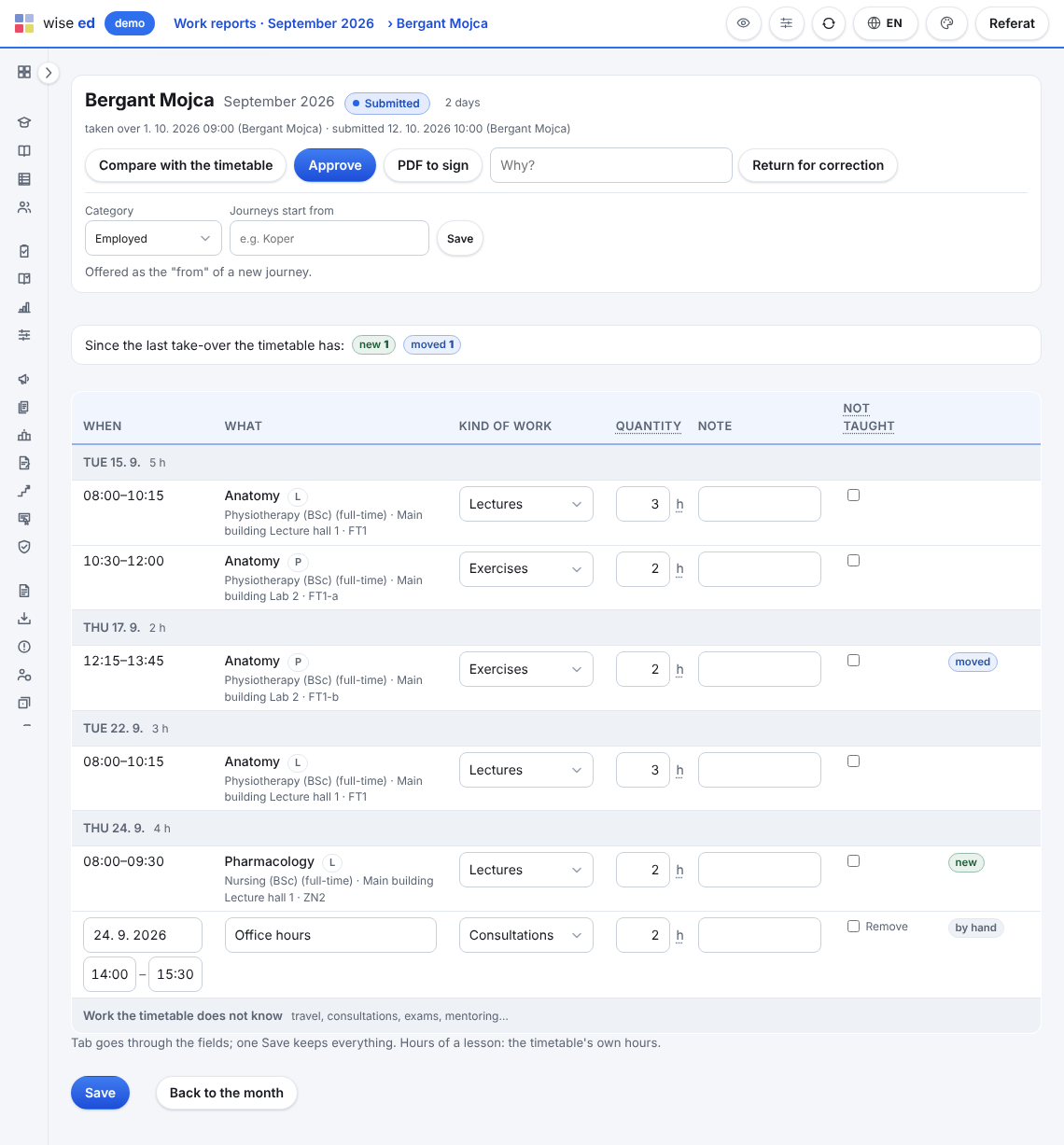
It shows one month: your lessons as the timetable has them, day by day. The arrows change the month; This month comes back to now.
Mark what was not held
Tick Not held for a lesson that did not take place. Compare with the timetable reads the timetable again; your ticks and notes stay.
Add the other work
Under Other work add travel, consultations, exams or mentoring. One Save keeps everything.
Submit to the office
After that only the office changes the month. If something is wrong, tell them: they return it to you with a reason.
Report an absence
Open Report an absence
Enter the first day (and the last, for more than one) and press Show my lessons.
Check the lessons
The ticked lessons go to the office to be covered or cancelled. Untick a lesson you will teach after all.
Give a reason
Choose the reason, add a note for the office and, if the school allows it, a colleague who could cover.
Report the absence
My recent absences then shows what became of each lesson: covered by whom, cancelled, or still being arranged. Withdraw takes it back while the office has not started on it.
Set your availability
Open My availability
The office asks for it before planning the next timetable; your overview says when.
Mark each time
Free, Rather not or Cannot for every slot of the school’s hour grid. On a phone one tap changes it.
Add a note
For example “On Wednesdays I teach at another faculty”.
Save, then Hand in
Save keeps your marks without handing them in. Hand in gives them to the office; you can change them and hand in again.
Post course materials
Open Course materials
Choose the subject. Copy from last year brings the sections that carry over, as drafts, with their files and links.
Add a section
New section: a week or a topic, with an optional note, and when students see it — not yet, now, or from a date.
Add files and links
Add a file (PDF, Word, PowerPoint, Excel, JPG or PNG) and press Upload, or Add a link with its address.
Publish
Students of the subject see a section and what is in it once it is published. The counts show how often each file was opened, never by whom.
Message your students
Open My messages
Conversations with students and your announcements, each with its state: Waiting for you, Answered, Closed.
Write to one student
Write to a student finds a student of your groups and subjects by name or enrolment number.
Write to a group
Announcement to a group sends one message to a whole group or subject of yours, into their inboxes and by e-mail, and shows how many have read it.
Send and close
Answers and closes a conversation; the student can still write, which opens it again.
See your students, and write to them
Open My students
Your subjects of this academic year — where you are the holder, the timetable gives you the course, or you examine.
Press Students on a subject
Search by name, number, group or e-mail, or pick a group. A chip marks a student repeating the year or with a special status.
Download, or write
Download gives the list as Excel or CSV, if the school allows it. Write opens a message to one student; Announcement to a group writes to a whole group.
Take attendance without a projector
Open Take attendance
Today’s lessons first; Last 7 or 14 days shows the earlier ones.
Mark the students
Press All present, then change the few who were late, absent or excused.
Save, or Save and finish
Save keeps the list open. Save and finish closes it — whoever is unmarked is absent. A finished lesson can still be corrected.
Questions from lecturers
Where do I change my office hours?
On My profile. Office hours and room are saved at once; a new e-mail or phone goes to the office for approval, because it belongs to your record in the timetable.
Why do I not see one of my subjects?
The student office links subjects to you, by naming you the holder or an assessor of an exam record. Ask them if one is missing.
See Wise Ed on your own school
Book an online presentation. We will walk through how your student office works today and show you the same job in Wise Ed — with your programmes, not a demonstration dataset.