
How-to
Lessons that need more than one room at a time
A laboratory split over three computer rooms, a lecture relayed to an overflow room, an exam spread across two halls. Say how many rooms the lesson needs, and the generator finds them together — same day, same hour, every week.
Two different questions
Before setting anything, decide which of two situations you are in.
The lesson needs several rooms, and any suitable ones will do. Ninety students in a computer laboratory that seats thirty. A lecture given in one room and relayed to two more. Nobody minds which rooms they are, as long as they are the right kind and free together. That is what this guide is about: the course says how many rooms, and the generator chooses them.
The lesson needs one particular space that is made of rooms. A clinic with its consulting rooms, a hall with a movable wall. It is always the same set, and using the whole means none of the parts can be used on their own. That is a master room, and it has a guide of its own: master rooms, and changing a lesson's room.
Setting it up
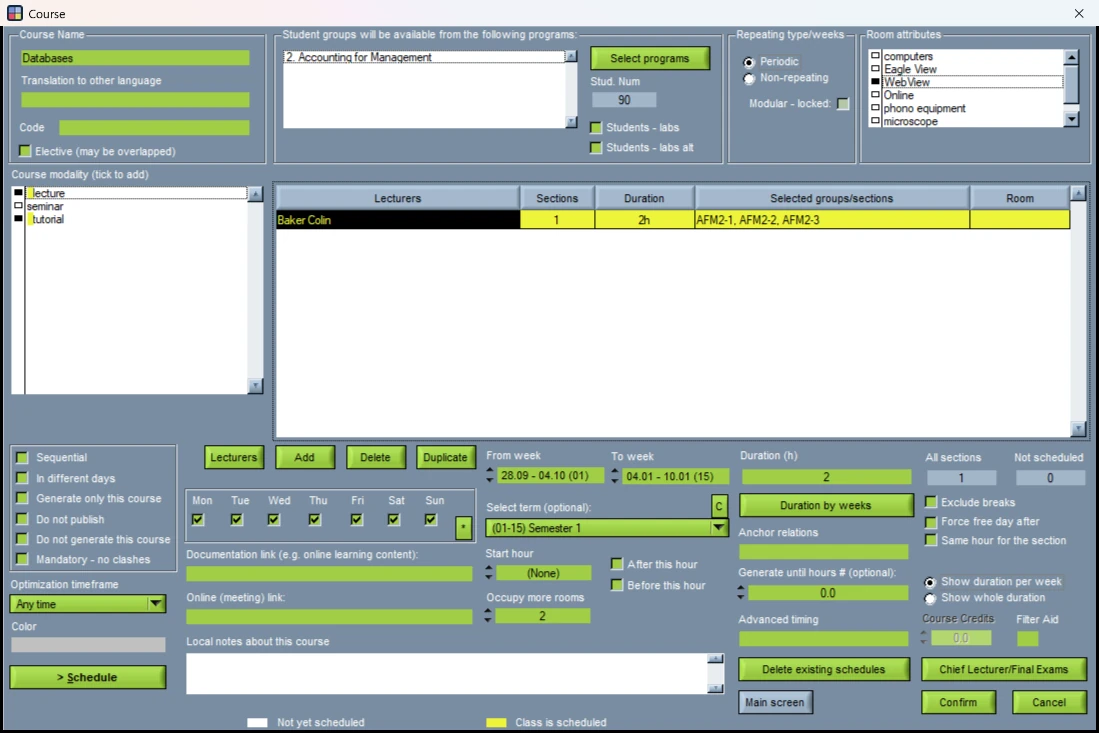
On the course screen, for the turn that needs the rooms — the row in the course's table that carries the lecturer, the groups and the hours.
Open the course
Edit › Courses (F3), and double-click the course. Choose the teaching form on the left — lecture, tutorial, laboratory — and click the turn's row in the table.
Say how many extra rooms
Set Occupy more rooms to the number of rooms in addition to the first: 2 means three rooms in all. The value belongs to the turn you selected, which is why the field stays dimmed until a row is chosen; the other turns of the course keep their own.
Say what the rooms need
Tick the equipment under Room attributes — computers, a video link, a fume cupboard. Generation uses only rooms that carry every ticked item, and the extra rooms have to carry it too.
Confirm, and generate
Press Confirm on the course screen and generate as usual. There is no separate step: the extra rooms are found as part of every run.
How the rooms are chosen
The generator looks for a place where the main room and every extra room are free at once.
- Same day, same hour, same length, same weeks. Every room has to be free for the whole lesson in every week it runs — of other lessons and of bookings.
- The students are shared out. With two extra rooms the main room has to hold a third of the group, not all of it: ninety students need three rooms of thirty, not a room of ninety and two more beside it.
- The extra rooms resemble the main one. A similar number of seats — somewhat smaller or somewhat larger is accepted, a room of a very different size is not — and the equipment the course asks for. When it asks for several items, the extra rooms are matched on the first; when it asks for none, on the first item of the main room.
- A room with no equipment recorded is never taken as an extra room, and neither is a master room or a room marked inactive. If your rooms have no equipment entered, this is the first thing to put right.
- Buildings are not considered. If the rooms must be next to each other, record that as equipment: give the rooms that belong together an item of their own — Lab wing, say — and make it the item the course asks for.
What you see after generating
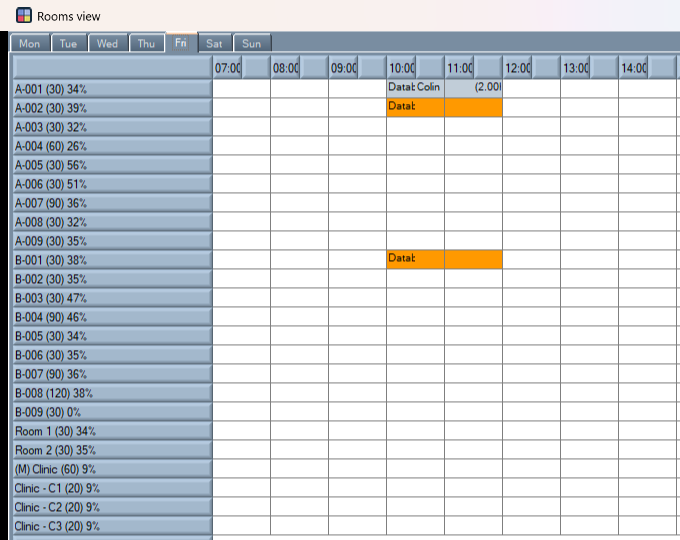
The lesson itself sits in its main room, like any other. Each extra room receives a booking for the same hours and the same weeks, carrying the course, the lecturer and the teaching form, so the room is visibly taken in its own timetable and in Analysis › View Rooms.
Once placed, a lesson with extra rooms is left where it is by the later steps of a run that close gaps in students' and lecturers' days: moving it would mean finding all its rooms again somewhere else.
If the week is tight, a lesson can end up in its main room with fewer extra rooms than it asked for. The generator then says how many lessons are short, before it reports that it has finished — which is the signal for the next section.
When a lesson is short of a room
Nothing is left half-done without a word. There are three tools, and they are meant to be used in this order.
Find the lessons
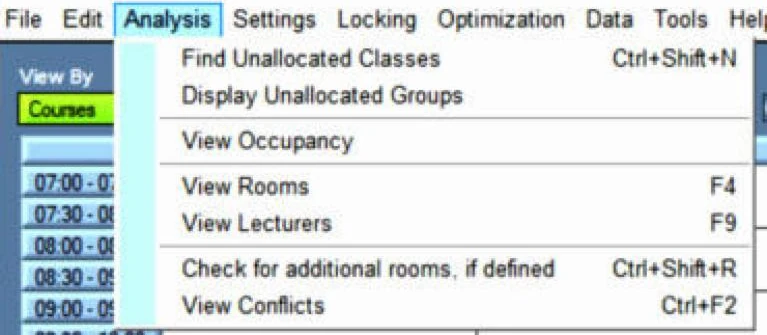
Analysis › Check for additional rooms, if defined counts every lesson that has fewer extra rooms than its turn asks for, and writes them to a short list — course, weeks, day, hour and main room — which opens from the File Settings tab of Settings › Miscellaneous.
Give the lesson room
Move it to an hour where enough rooms are free: right-click it and choose Edit or Swap. When you confirm, its extra rooms are found again for the new position, and if there still are not enough you are told on the spot.
Or free a room, and find them again
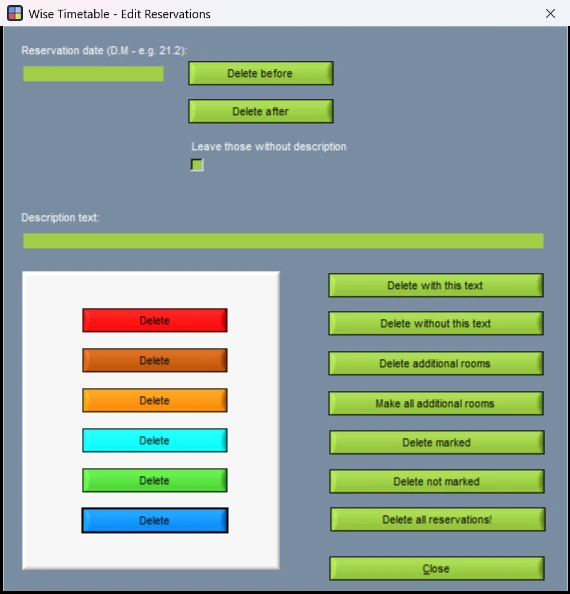
If you would rather move something else out of the way, do that, then use Tools › Edit reservations › Make all additional rooms. It finds rooms again for every lesson that is short and leaves the complete ones alone. Delete additional rooms beside it removes every extra-room booking at once — it counts them and asks first.
Check again
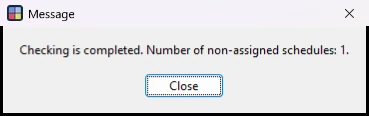
Run the check once more. Number of non-assigned schedules: 0 is the answer you are looking for.
Worth knowing
- A preferred room becomes the main room. A turn can have both a preferred room and extra rooms. The extra rooms are then found around the preferred one after the lessons are placed, rather than tested while they are placed — so in a crowded week a lesson with a fixed room is the likeliest to come out short.
- Locked lessons keep their rooms. A run finds extra rooms again for the lessons it places; a lesson you have locked keeps the ones it has.
- Moving by hand finds them again. Edit, Swap, Delete This Week and Split into individual weeks all look for the extra rooms of the new position themselves. After any other change, one press of Make all additional rooms puts the bookings back in step.
- In the browser administration the same number is set on a plan line's constraints, as Occupy more rooms.
Related
Want to see this working?
Book a 45-minute online presentation and we will walk through it against your institution's own scheduling problem.