
How-to
Master rooms, and changing a lesson's room
Some spaces are made of rooms: a clinic and its consulting rooms, a hall with a movable wall. Tell Wise Timetable which rooms belong together and a lesson in the whole blocks every part. Then the three places a lesson's room is changed — for one week, for a range, or for good.
A room made of rooms
A teaching clinic has three consulting rooms. Some sessions use the whole clinic; others use one consulting room each, three groups at a time. A lecture hall with a movable wall is the same shape: one hall or two halves, never both at once.
Wise Timetable models this with a master room: a room that stands for the whole space, with its parts as ordinary rooms beside it. When a lesson is in the master room, every part is taken for the same hours, so nothing else can be put into a consulting room while the whole clinic is in use.
The parts need no special setting. When the whole space is not in use they are timetabled like any other room.
Setting up a clinic
Which rooms are the parts is decided by equipment: every room that shares an equipment item with the master room belongs to it. So the whole setup is one item and a few ticks.
Create the item
Settings › Equipment: add an item named after the space — Clinic.
Create the master room
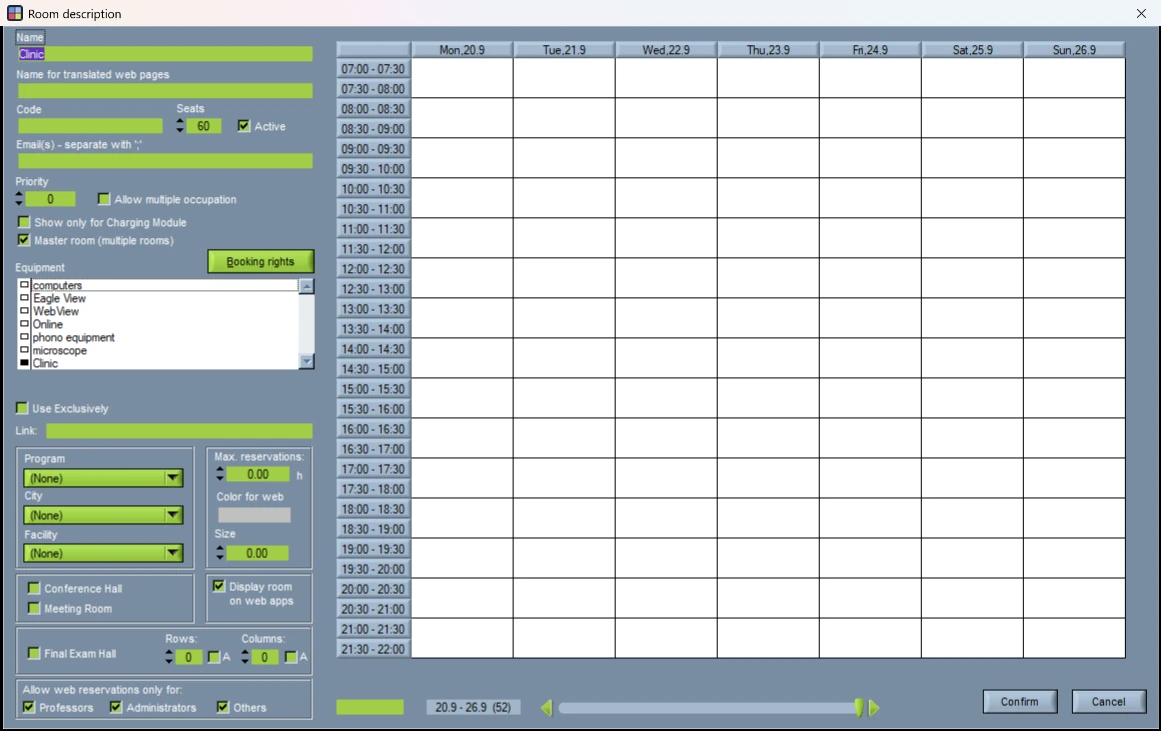
Edit › Rooms › Add. Name it, give it the seats of the whole space, tick Master room (multiple rooms), and under Equipment tick Clinic — and nothing else.
Tick the parts
Open each consulting room and tick Clinic under its Equipment, alongside whatever else it has.
Check the list
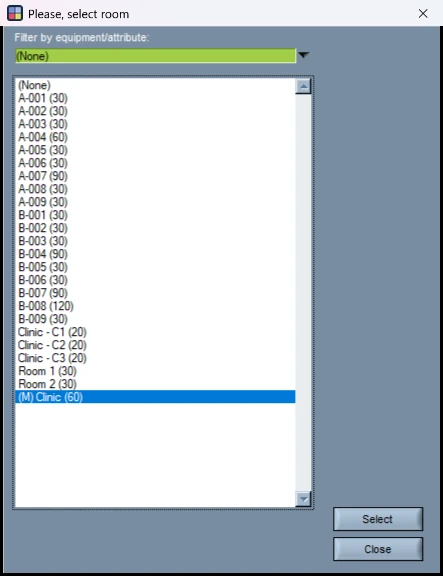
The master room is drawn in blue in the room list, and every room chooser marks it (M).
One item of equipment, and only one
Because the parts are found through shared equipment, the master room must carry its own item and no generic ones. Tick projector on a master room and every room in the building with a projector becomes one of its parts — and is blocked whenever the whole space is in use.
The parts, on the other hand, can carry anything else they have; only the shared item matters. And a space can have as many parts as you like: every room that carries its item is one.
What a lesson in the whole does to the parts
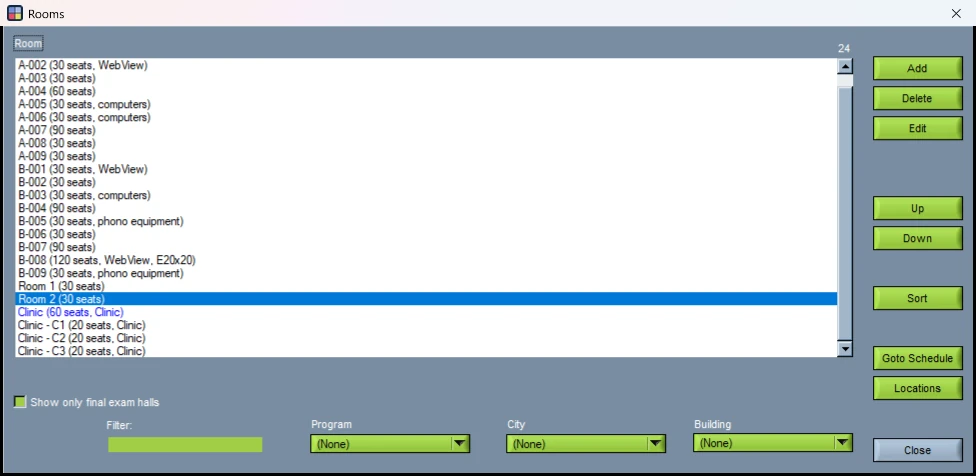
Give the turn the master room as its preferred room — the Room column on the course screen, below — and generate. The lessons go into the whole clinic, and each consulting room receives a booking for exactly the same hours and weeks, named after the course. In Analysis › View Rooms the whole space reads at a glance: the lesson on the master room's row, a booking on every part beneath it.
The generator never chooses a master room on its own. A lesson goes into the whole space only when you have asked for it, so the parts stay available for the lessons that need a single consulting room.
In the room list of the lesson window, bookings count both ways: a booking of the master room shows its parts as taken, and a booking of one of its parts shows the master room as taken.
A master room is never used as an extra room by a lesson that needs several — that is a different tool, described in lessons that need more than one room.
Changing a lesson's room
Three places, and they differ in how many weeks they change.
| Where | What it changes | Use it when |
|---|---|---|
| Right-click a lesson › Edit This Week | That lesson, in the week on screen | A room is out of action for a week, an exam needs the hall, anything one-off. |
| Right-click a lesson › Edit | That lesson, in every week it runs | The lesson belongs in another room from now on. |
| Course screen › Room column | The turn's preferred room, and if you say so its lessons | A whole turn moves — every lesson of that lecturer and those groups. |
On the timetable: Edit and Edit This Week
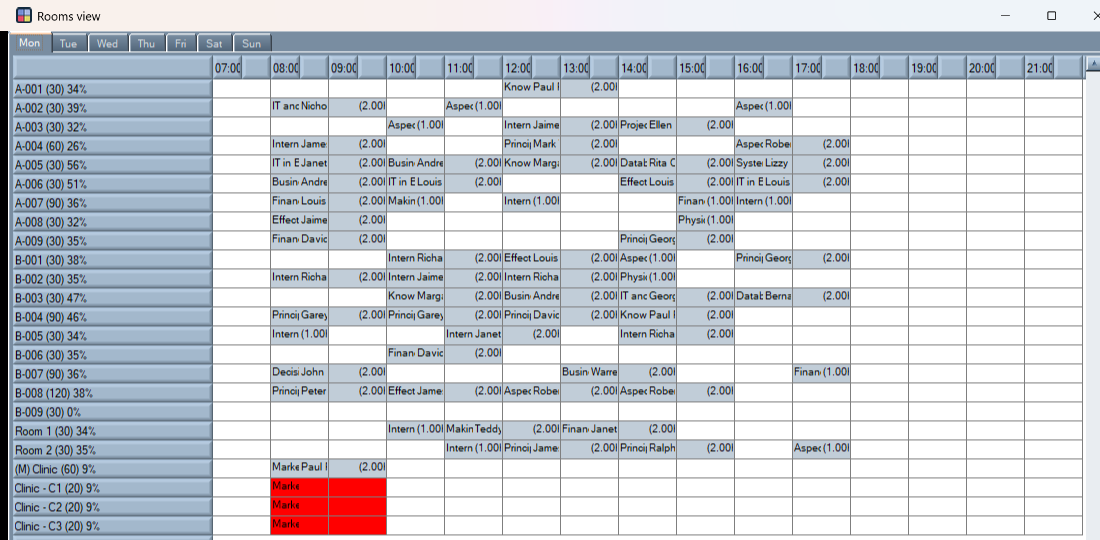
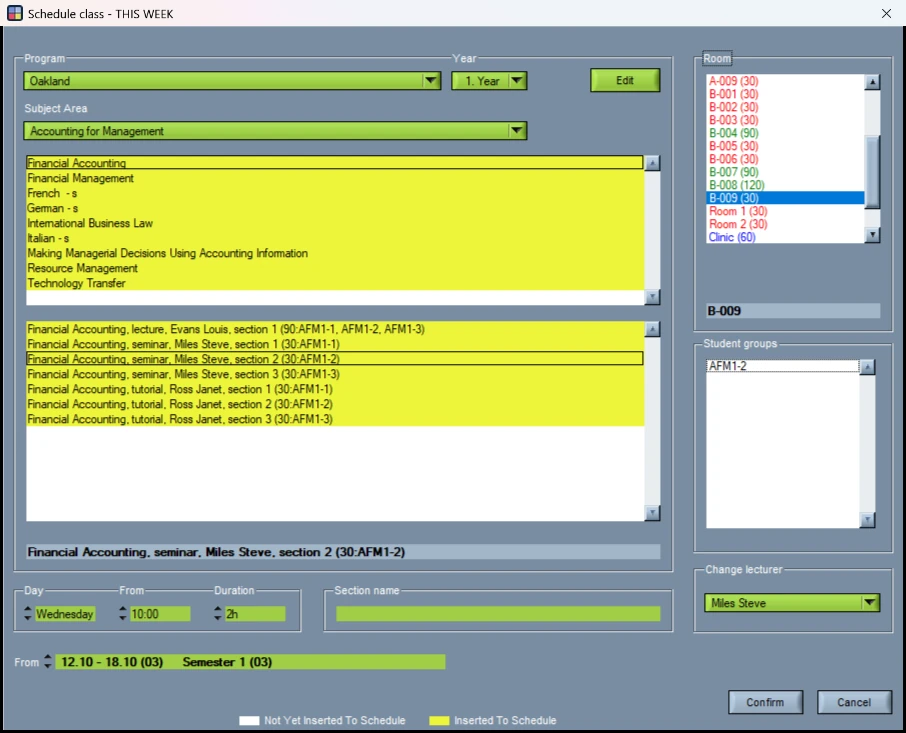
Right-click the lesson on the main screen. Edit opens it for all its planned weeks; Edit This Week opens it for the week on screen only, and the window says which in its title.
The Room list on the right shows every room at the lesson's day and time. Green is free; red is taken — by another lesson or by a booking, in at least one of the weeks; a free master room is blue. Change the day or the hour and the colours are worked out again. The room the lesson is already in shows red too: it is taken by the lesson itself.
Pick a room and press Confirm. If the room is booked or already in use in some week, you are asked, with the weeks named, rather than refused — the decision is yours.
Edit This Week cuts that week out of the lesson. The week you edited becomes a lesson of its own in the new room, and the weeks before and after keep the old one. For several weeks but not all, use it once per week, or right-click the lesson and choose Split into individual weeks first, which turns it into one entry per week.
On the course screen: the Room column
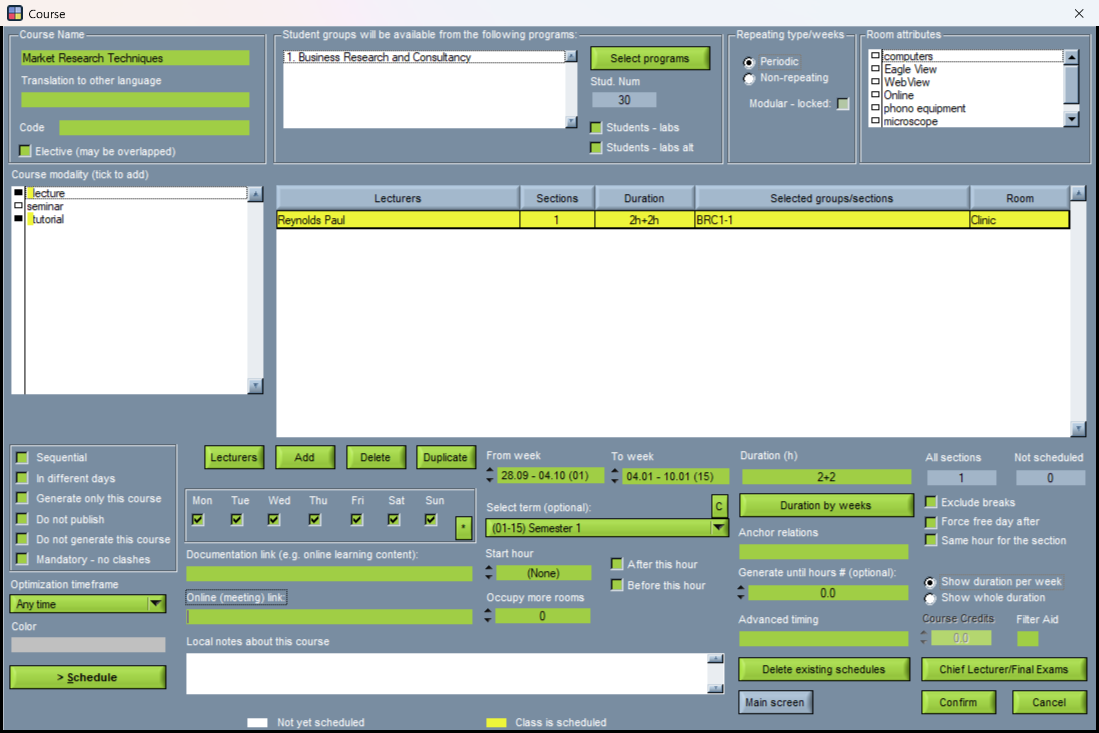
In the course's table every turn has a Room. It is the turn's preferred room: a wish the generator honours, not a record of where the lessons are. Right-click the cell to see which rooms the turn's lessons actually use.
Double-click it to choose a room. The chooser can be narrowed by equipment, and marks master rooms (M). If the turn already has lessons in the timetable, you are then asked whether they should move too, and for which weeks: leave the box empty for all of them, type a range such as 4-12, or press Cancel to change the preferred room alone and leave the lessons where they are.
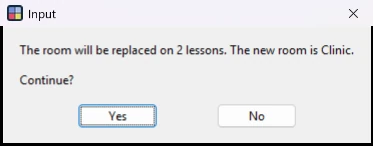
Before anything moves you are told how many lessons will change, which room they go to, and on how many of them that room is already taken at that time. Nothing moves until you answer Yes.
The range chooses lessons, not weeks. Every lesson of the turn that runs in any of those weeks takes the new room — for all of its weeks. A lesson held as one entry for weeks 1–15 moves as a whole even if you typed 4–12. To move only part of a term, split the lesson first (right-click › Split into individual weeks), or use Edit This Week on the timetable.

Turning the question off
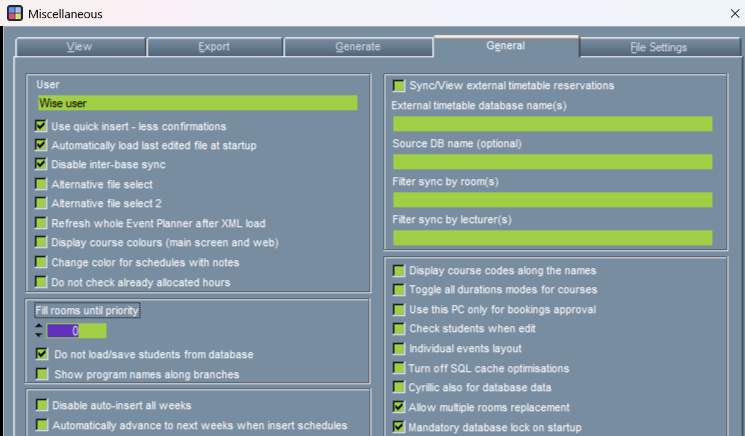
Whether the course screen offers to move the lessons at all is a setting of each workstation: Settings › Miscellaneous › General › Allow multiple rooms replacement. With it off, a new Room on the course screen changes the preferred room only, and the lessons stay where they are.
In the browser administration the same choices are made on the lesson itself, with a tick for only this week, and a tool sets one room over a range of weeks — cutting lessons at the edges of the range, so the weeks outside it keep their room.
Want to see this working?
Book a 45-minute online presentation and we will walk through it against your institution's own scheduling problem.