Guides
Guide for the student office
The everyday jobs of the student office in Wise Ed, one task at a time, with the names the screens use. Your school decides which modules are switched on and your role decides which screens you see, so a task here may be missing from your menu.
- Every task starts from the menu on the left or the work queue
- The screen asks before anything unusual is saved
- The full guide with pictures is a PDF
The full guide
The office guide covers every chapter with pictures, from the curriculum to code lists: office guide (PDF), also in Slovenian and Croatian. The question mark in the office’s top bar opens it in your language.
Start the day from the work queue
Sign in
Open your school’s Wise Ed and sign in with the user name and password of the timetable’s administration. You land on the Overview.
Read Waiting for you
Everything that needs the office, oldest first: what waits, in which part, about whom, and for how long. A row waiting longer than usual is marked late.
Narrow it down
The chips above the list show one part at a time, with a count; the search finds a name or a number.
Open and settle
Open takes you to the one screen that settles the row. When it is done the row leaves the list; an empty list means the work is done.
Find a student and correct their data
Search
Open Students and type part of the name or the enrolment number. A search that finds one student opens the record at once; otherwise narrow by programme, year and status.
Read the record
The head shows programme, year, status, credits, money owed and open requests. History lists everything that happened to the student, newest first.
Change the data
On the tab Data and enrolments, change the fields and press Save.
Answer the questions
If the screen lists something under Before this is saved — a national ID number that does not add up, another student of the same name — correct the field or choose Save anyway.
Enrol a student from an application
Open the call’s applications
Open Applications and choose the call. Applications come in by Import applications, or one by one with New application.
Check the candidate
Open an application: the candidate, the choices, the points per criterion and the documents received.
Rank
Ranking orders the candidates of one programme, year and mode by score. Accept the first N with Show who shows exactly who would be accepted before anything is changed.
Decide, and send the letters
Tick the applications and choose Accept or Do not accept, then Set. Decision letters (PDF) makes the letters for the ticked candidates.
Enrol
Enrol enrols the accepted candidates. For students moving up a year, Next year proposes each student’s enrolment, or opens them the online form.
Approve an online enrolment form
Open the form
Enrolment forms lists the forms by status; open one. Students hand them in from the portal, confirmed with a code by e-mail. Conditions says whether the student meets the conditions for that year.
Compare the changes
Each field the student changed shows the record’s value beside the form’s. A ticked change goes into the record; untick one to keep the record’s value.
Decide
Approve and enrol, or Ask the student — they read your question on the form and hand it in again. Reject and Cancel the form are there too.
Sign off an exam record
Find the record
Exam records lists them with filters for programme, year, exam period, kind and status — Results entered, not signed off and Sign-off overdue among them.
Check the results
Under Students and results, each student has a result from the school’s grade scale or Did not attend. Missing ones are entered here; Save results keeps them.
Sign it off
Sign off the record by the date under Sign off by. A signed-off record takes no more results; changing it needs Reopen with a reason.
Issue invoices and match a bank statement
Charge the year
Make sure the Price list has a price for each programme, year and mode. In Charging a year, choose the year and the students and press Preview; students without a price are named and left out. Then create the charges.
Issue what is due
Issue what is due issues the invoices for the instalments that have come due. Each carries the payment slip of the school’s country and a reference for matching.
Import the statement
Download the statement from e-banking as camt.053 (XML) and, under Payments, choose the file and press Import and match. Payments are matched by reference, then invoice number, then amount and name.
Match what did not match
Open the tab Not matched and a payment. Under Which invoice is it for? press This one beside the right invoice, or It is a student’s money, or Not a student payment with a reason.
Correct, never delete
An issued invoice is corrected with Issue a credit note, which gets its own number at once.
Answer a request with a decision
Open the request
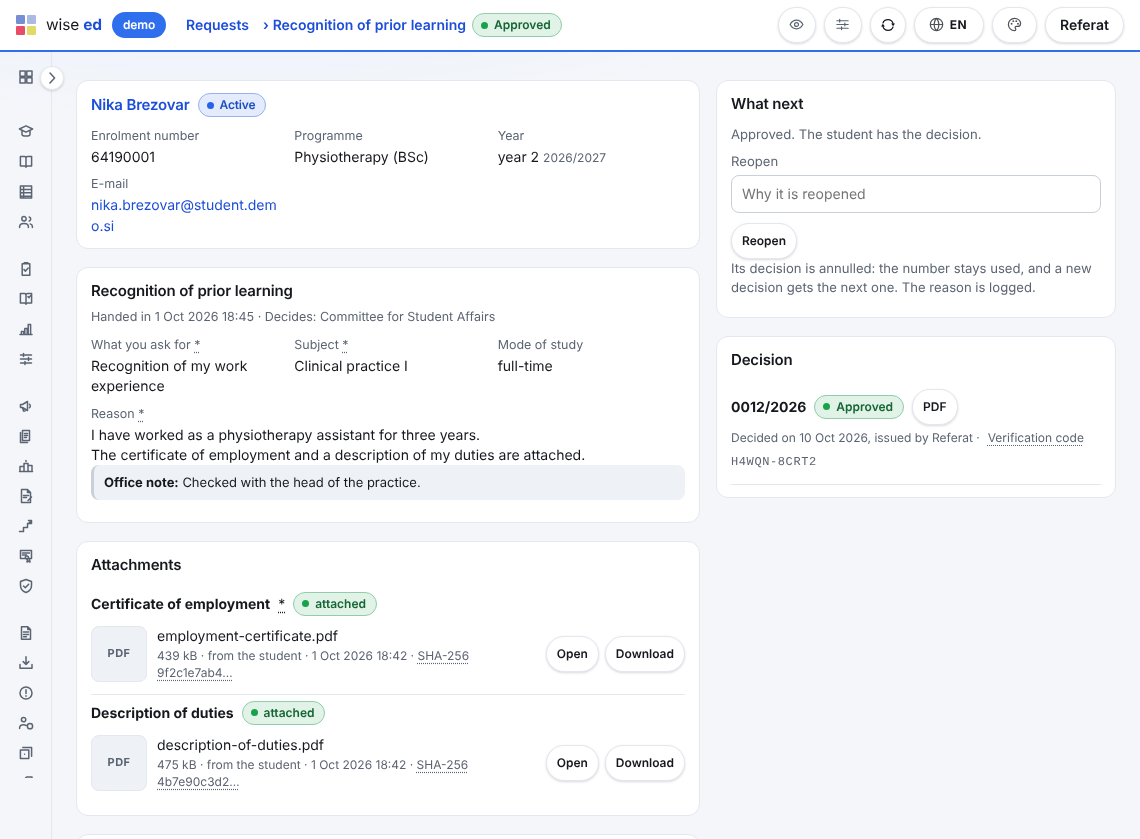
Requests shows them by status, with how long each has waited. Open one: what the student asks for, the attachments (a missing required one is marked) and the history.
Ask for what is missing
Choose a quick reply or write your own and press Send to the student. The request comes back to your queue by itself when the student hands it in again.
Prepare the decision
Press Prepare an approval or Prepare a rejection. The text comes from the request type’s template; a part still in [square brackets] is a reminder of something to fill in.
Issue it
Preview shows the paper; Issue the decision gives it its number and verification code, and the student finds it in the portal at once.
Issue a diploma and its supplement
Record the graduation
On the thesis page, in the section Graduation, record the date of graduation.
Check the date and place
In the section Diploma and supplement, check the Date of issue and the Place of issue. If something is missing, the screen says so first; you can put it right or issue anyway.
Issue
Press the button that issues the diploma and the supplement. Both get the next number — taken only now, so the numbers have no gaps — and their verification codes.
Print
Print on diploma paper prints on the school’s own paper; Archive copy and Supplement PDF give the rest. A lost diploma gets a duplicate, an error a correction, each with a reason.
Report a batch to the national register
Only where the school’s country keeps a register Wise Ed is connected to — today Slovenia’s eVŠ. A school elsewhere does not see this part.
See what is still to report
The reporting overview lists enrolments, graduations and withdrawals still to report, and for each student who cannot be reported yet exactly what is missing.
Make a batch
Make a batch gathers what is ready. The batch is checked again every time it is opened: What stops records counts each problem in plain words.
Correct or take out
Correct the data the problems name, or Take out a record to report it later.
Approve, send, confirm
The steps at the top act on the whole batch, and the register’s answer is kept with it.
Enter a walk-in, and give enquiries to counsellors
Press Walk-in
At the top of any screen of Relationships. Type the name, an e-mail or phone, the programme and what they asked; tick consent if they agreed, add a call-back date if you like, and Save.
Answer the question, if one comes
An e-mail or phone the school already has asks: Add this visit to … (the person you know) or A new person anyway.
Work the Unassigned list
People, chip Unassigned: tick the people, choose a counsellor in the bar under the list, type why and press Give them. The reason is kept with who and when.
A counsellor’s own list
A counsellor’s People opens on My prospects; the red chip with the late follow-ups opens those, and Everyone shows all.
Run a campaign and share the enquiry form
Make the campaign
Campaigns, New campaign: a name (the code is made from it), the source, the dates and, if you like, the cost. Save.
Share its link
Copy the campaign’s ?c=CODE and add it to the address of the enquiry form — on a poster, a QR code or an advert. Every enquiry through it is filed under the campaign.
Put the form on the website
Under Enquiry form, copy The link to the form for mails and leaflets, or the embed code for the school’s own web page.
See what came in
The form’s screen shows the last seven days; Campaigns shows the people each one brought and how many applied.
Record a transfer, a withdrawal or a pause
Open Study changes
Find the student by name or student number.
Say what happens
A transfer, a withdrawal, a completion, a pause or the return, the date (empty is today), the reason and the decision’s number. For a transfer, the new programme, year, branch and mode.
Keep or untick the charges
Also cancel the open charges is ticked; untick it if the student still owes them.
Record the change
Answer any question, and read the change in the student’s study history below.
Check a student’s documents and emergency contacts
Open the student’s file
Emergency contacts: Add an emergency contact — name, relation, phone and the order to call.
Add a document
Under Documents and eligibility: the kind, the dates, and a scan — or no file, when you have seen the original.
Checked or Reject
Mark a document that holds as Checked, or type a reason and Reject it. The line of what the school asks for shows what is missing or expired.
All students’ documents
Student documents lists what waits to be checked, expires soon, expired or was rejected, with Checked and Reject in the list itself.
Let a student off a fee
Waive a fee
Under Fee waivers, find the student, choose the charge or the invoice, the amount (empty is all of it) and the reason, then Ask for the waiver.
A second person decides
The Waiting chip lists what waits: Approve, Refuse with a note, or Withdraw.
Release the credit note
A waiver on an issued invoice makes a draft credit note; the accounts release it as usual.
Questions about the office’s work
Can a mistake be undone?
It is corrected, not erased: a grade by a new entry with its reason, an invoice by a credit note, a decision or a diploma by a new issue. The history keeps who did what and when.
Why is a screen missing from my menu?
Either your school has not switched that module on, or your role does not open the screen. Whoever administers Wise Ed at the school can tell you which.
Can I change how many rows a list shows?
Yes: 10, 25, 50, 75, 100 or all, remembered for you list by list. Every list also exports to Excel or CSV.
See Wise Ed on your own school
Book an online presentation. We will walk through how your student office works today and show you the same job in Wise Ed — with your programmes, not a demonstration dataset.