Wise Timetable

Gallery · 23 screens

The timetable office, in a browser

Courses, rooms, lecturers and groups, the week grid, generation, reports and bookings — the planner’s whole job in any modern browser, with nothing to install on anybody’s computer.
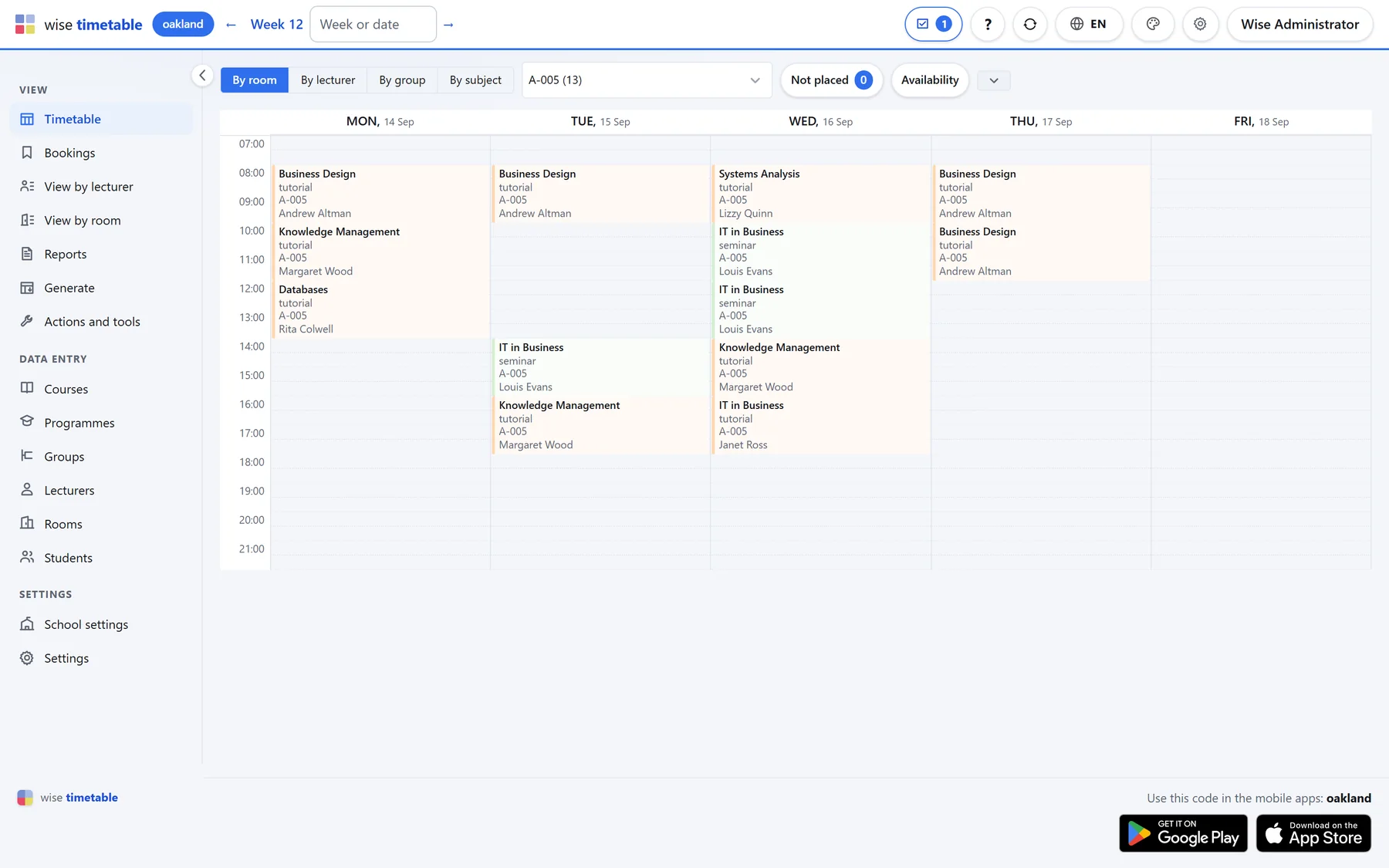
Week grid of the Wise Timetable browser administration, showing one room’s teaching week

The week and the day

The week opens by room, lecturer, group or subject. A lesson pressed open shows everything about it and what can be done to it; the two day views show the whole school at once.
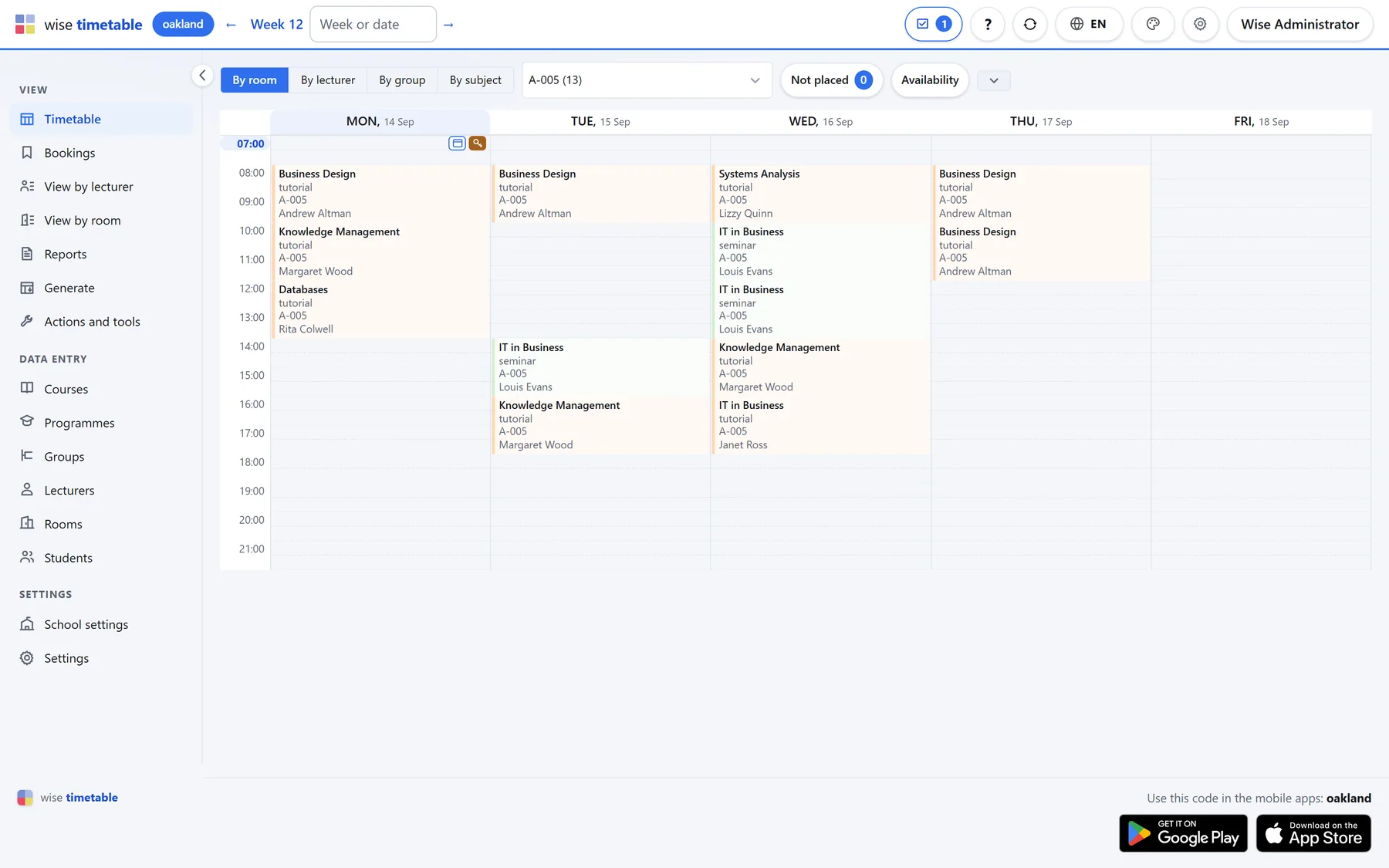
Week grid of the Wise Timetable browser administration, showing one room’s teaching week
The week as it opens By room, by lecturer, by group or by subject. The counter beside the view tabs says how many lessons are still waiting to be placed.
Lesson detail panel beside the week grid in the Wise Timetable browser administration
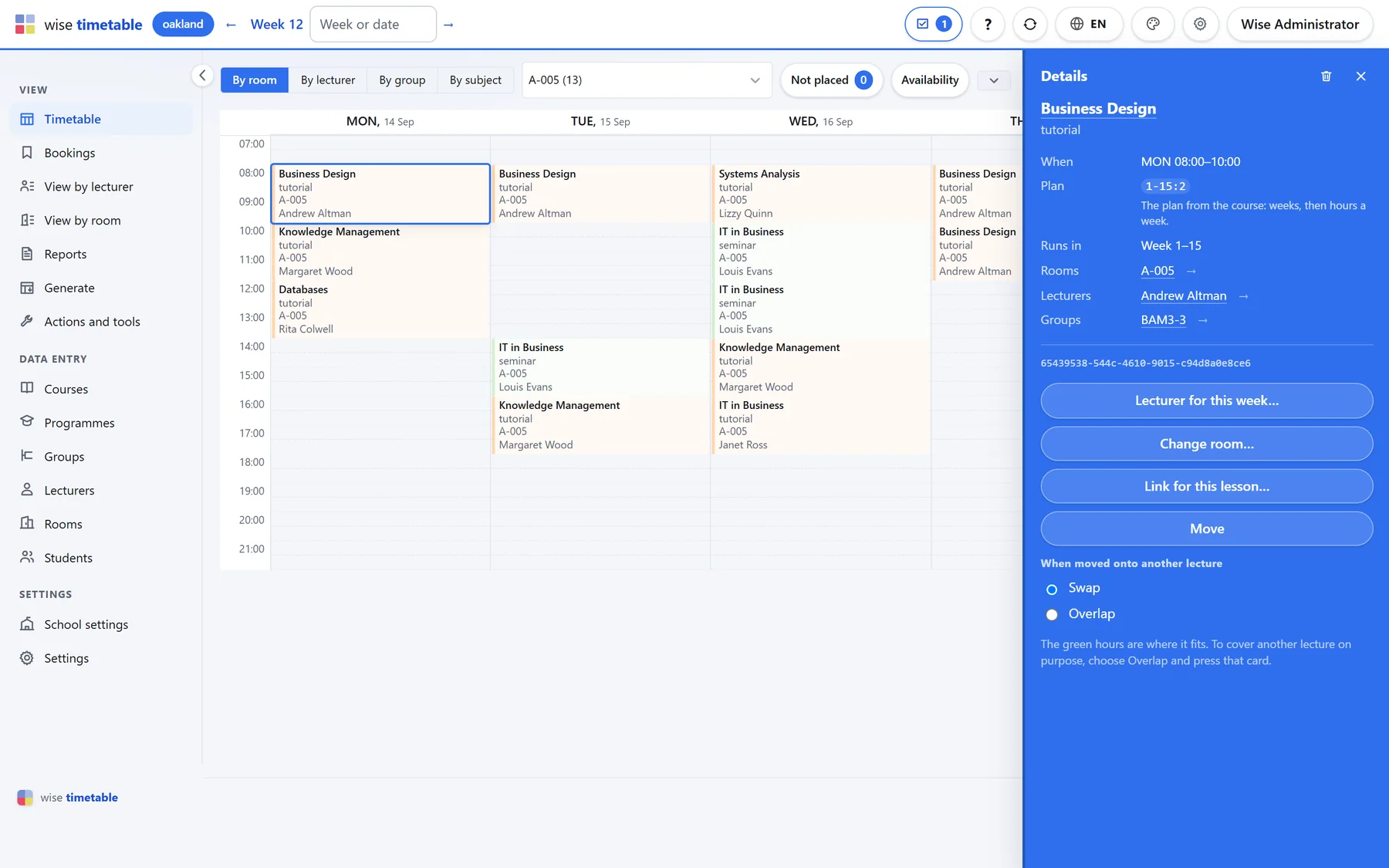
A lesson, pressed open The plan behind it, its weeks, room, lecturer and groups — and what can be done to it: change the room, set a lecturer for one week, move it, swap it or overlap it on purpose.
An empty hour in the Wise Timetable week grid offering the place-a-lesson and book-the-room icons
Two icons on every empty hour The left one places a lesson that is still waiting; the right one books the room for something else.
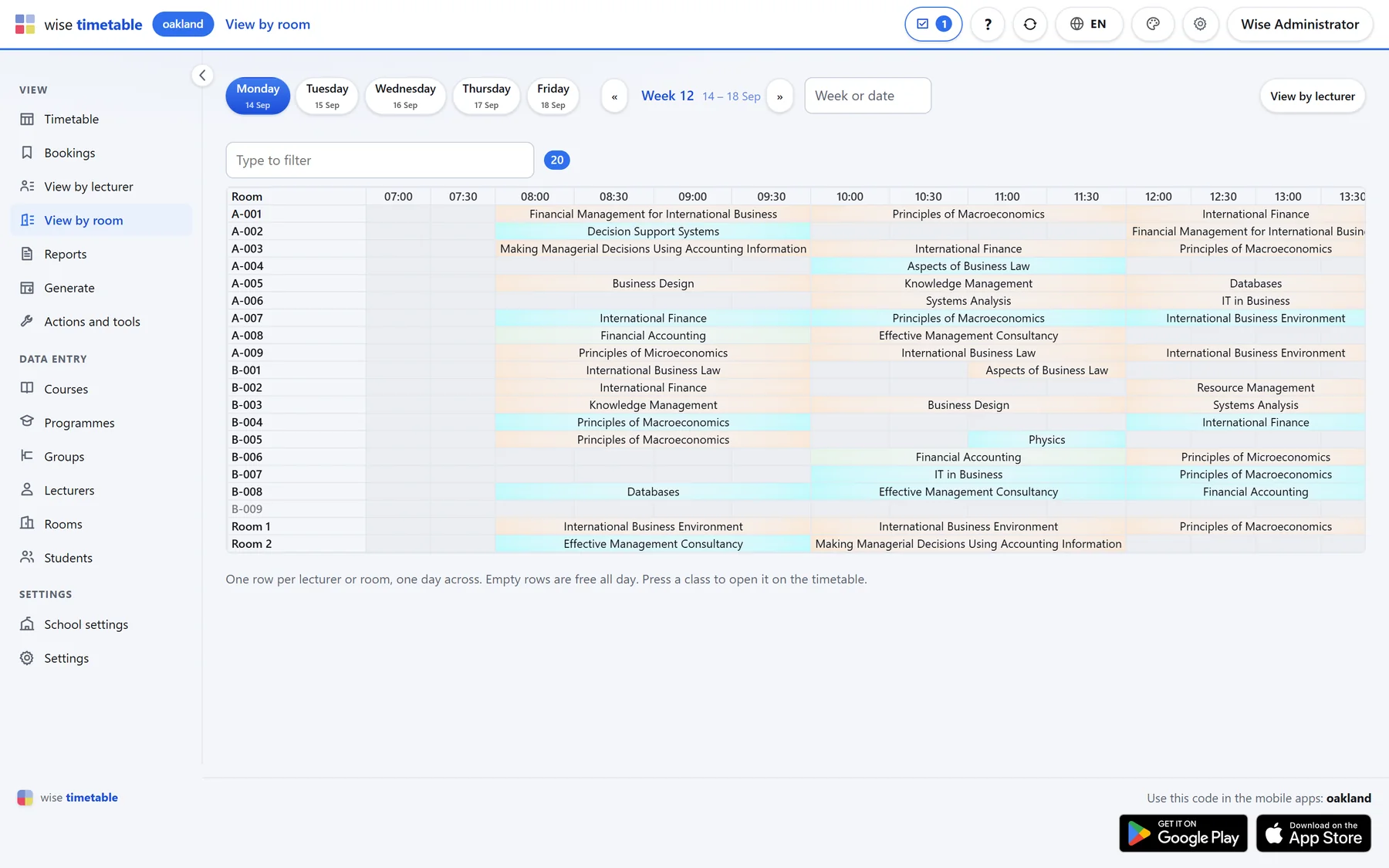
Day view by room in the Wise Timetable browser administration
The whole school on one day One row per room, one column per line of the school’s own hour ladder. An empty row is a room nobody uses that day.
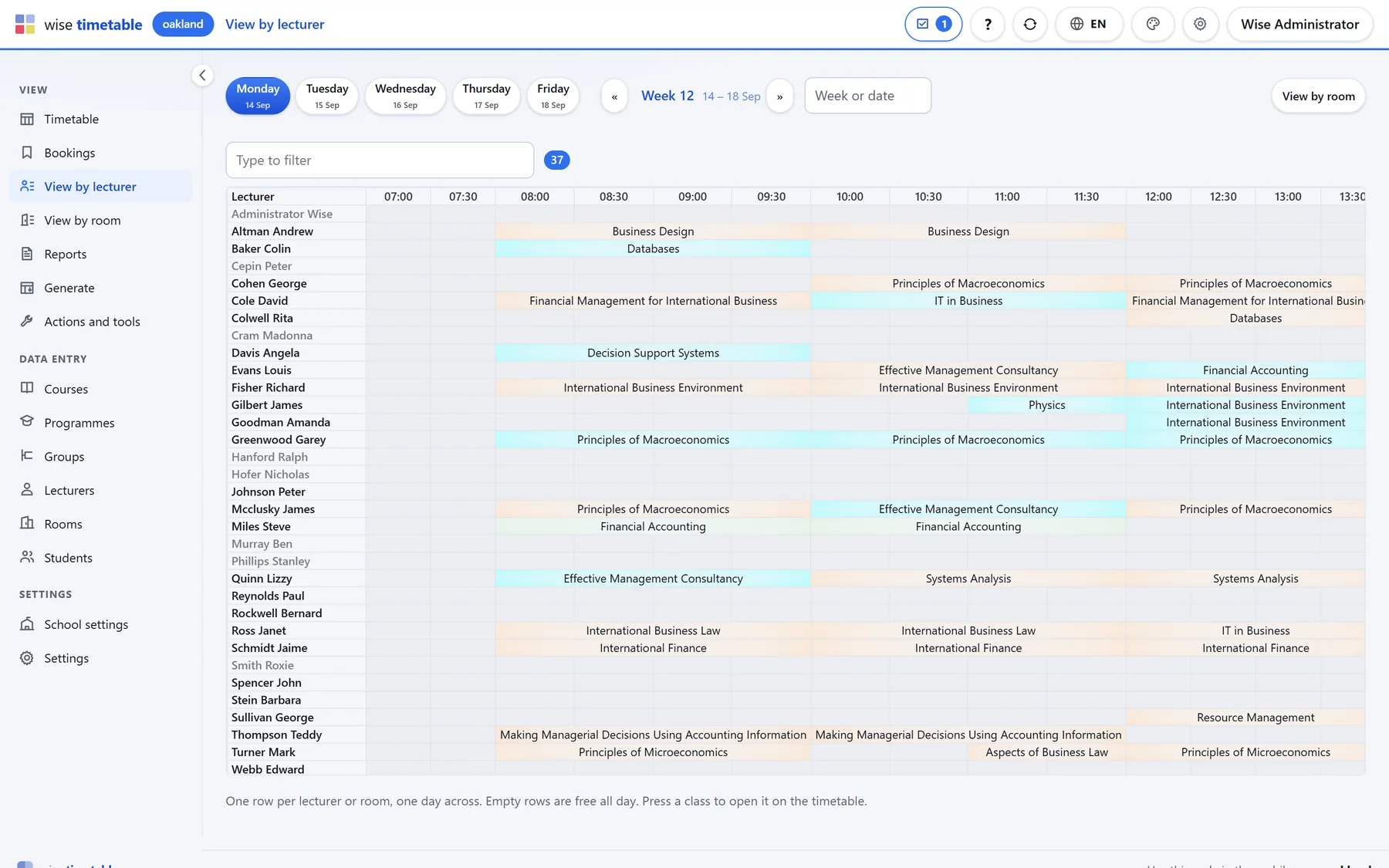
Day view by lecturer in the Wise Timetable browser administration
The same day, by lecturer A name in grey teaches nothing that day. Back-to-back teaching and long gaps show without opening anybody’s week.
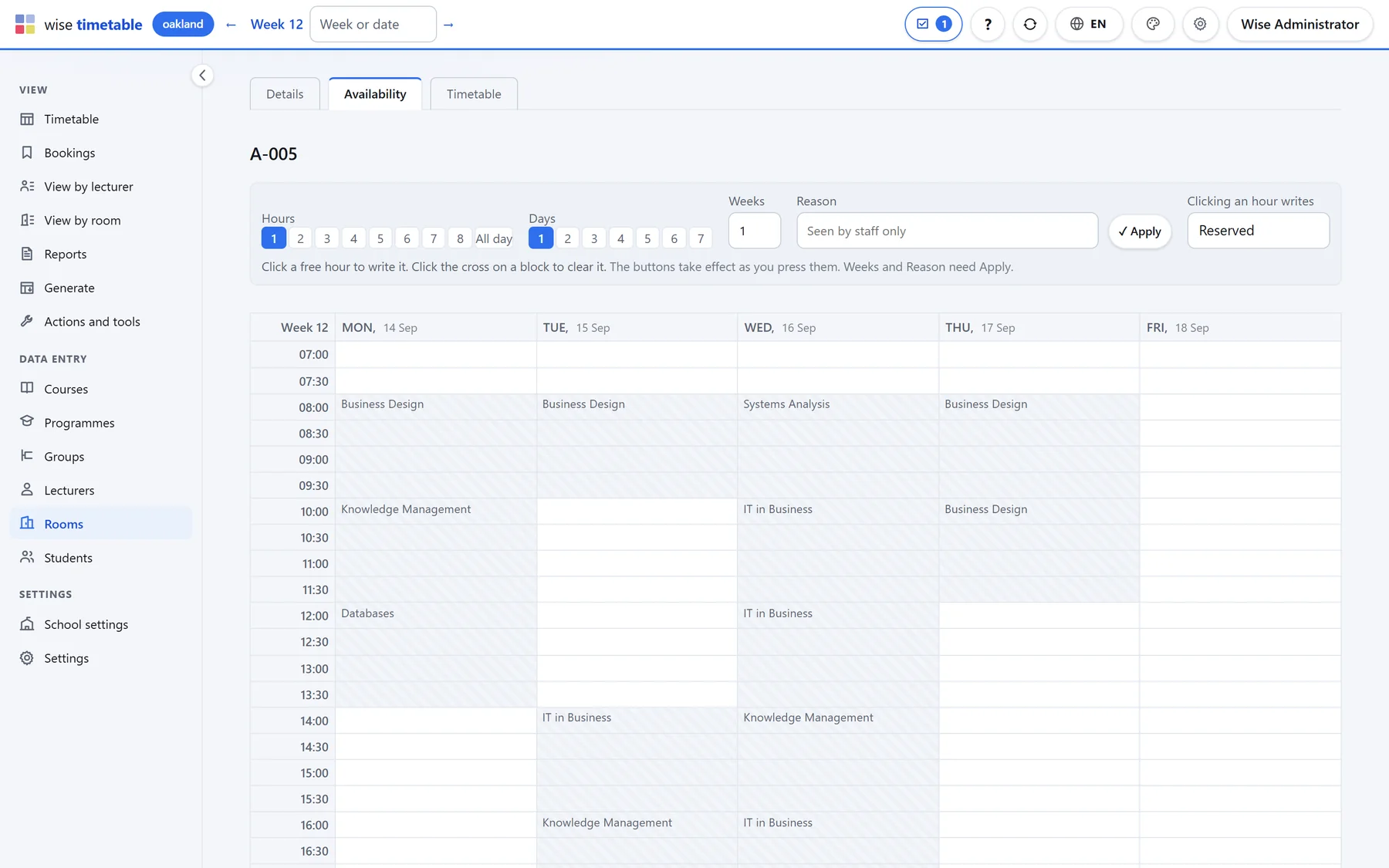
Editing a room’s availability in the Wise Timetable browser administration
Availability The same week, but a click writes a block instead of a lesson: the hours a room cannot be used, with the reason and who may see it.

Entering the data

The register the timetable is built from: subjects and how each is taught, the programme structure, groups, lecturers and rooms.
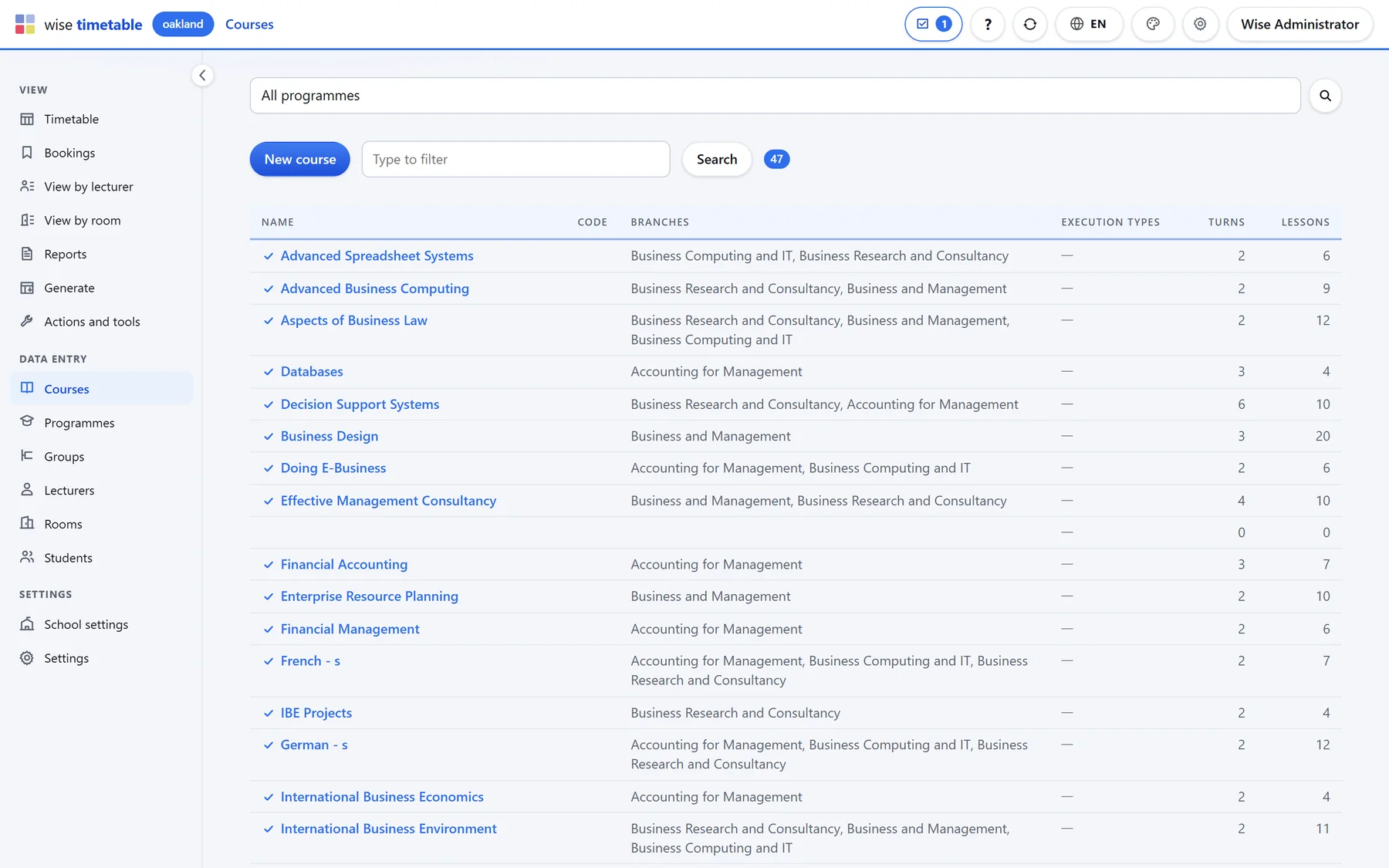
Course list in the Wise Timetable browser administration
The course list Narrowed by programme, year and branch, searched by name, code or translation. The last columns say how each subject is taught.
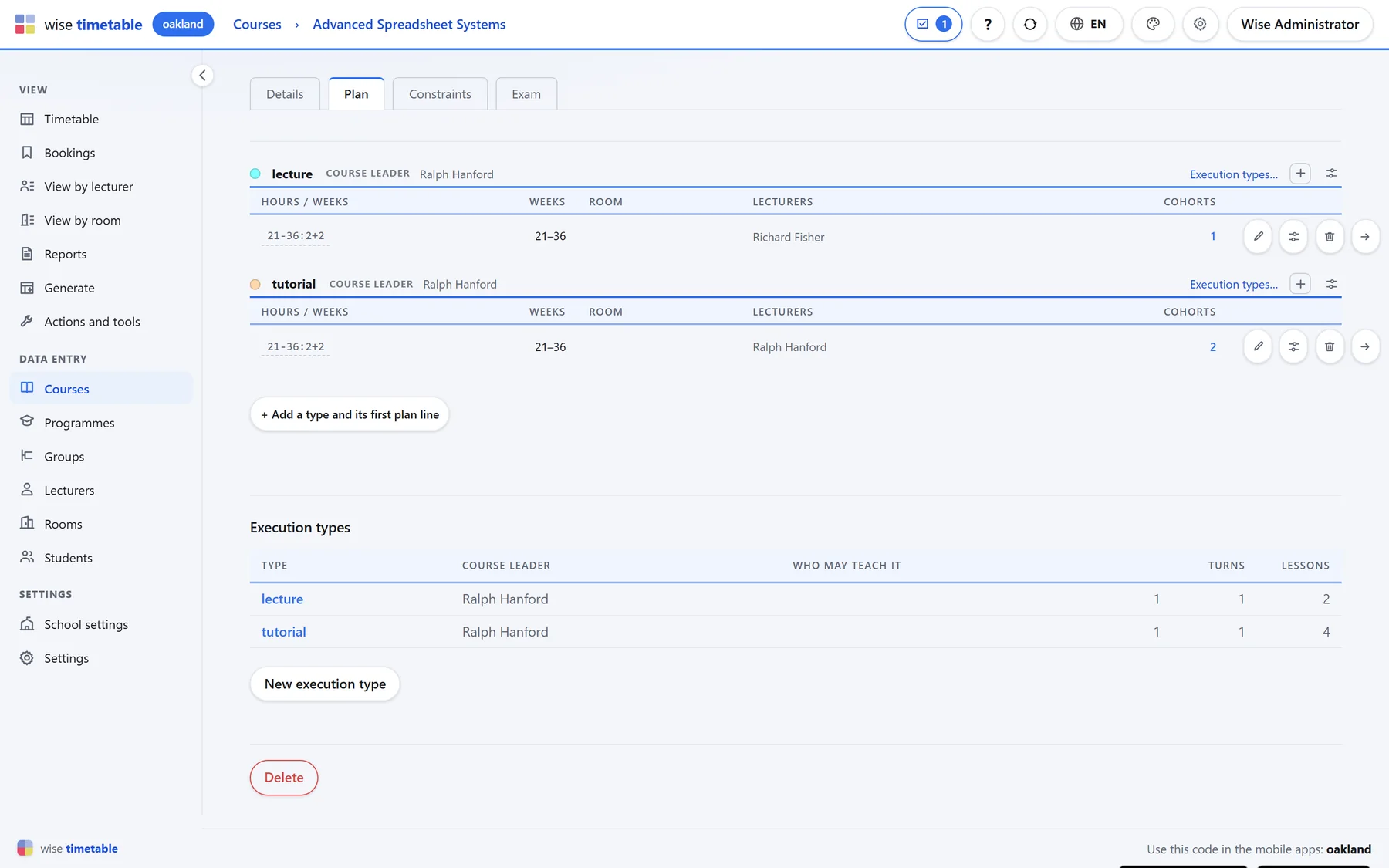
The plan tab of a course in the Wise Timetable browser administration
A course and its plan Plan lines for each way of teaching — lecture, tutorial, lab — with weeks and hours, and the Constraints and Exam tabs beside them.
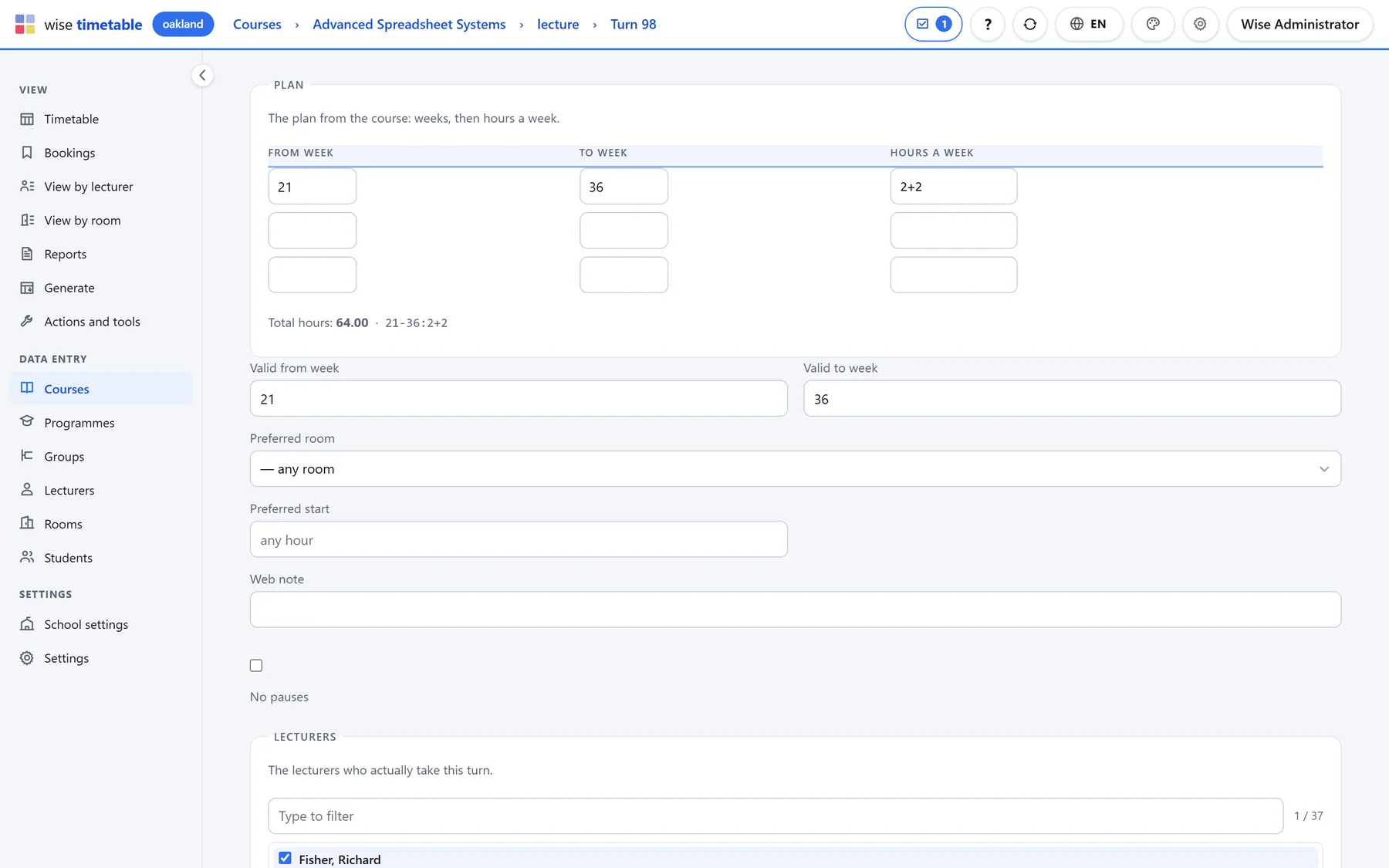
Editing a turn’s weeks, hours and preferences in the Wise Timetable browser administration
A turn From week, to week and hours a week are the grammar of the plan. The room and the start are preferences, not orders.
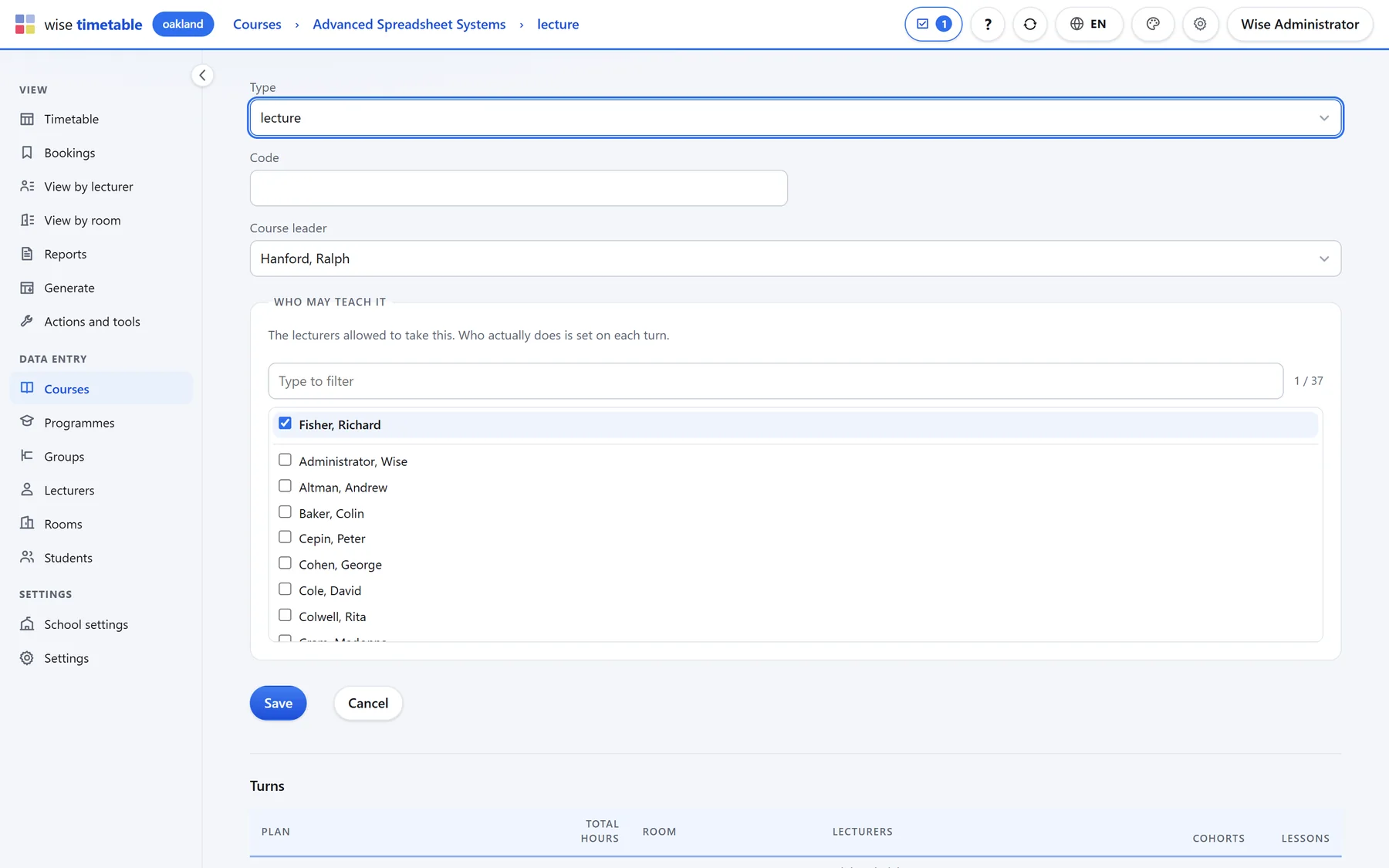
Choosing the lecturers allowed to teach a course part in the Wise Timetable browser administration
Who may teach it Each way of teaching names the lecturers allowed to take it; who actually does is set on each turn.
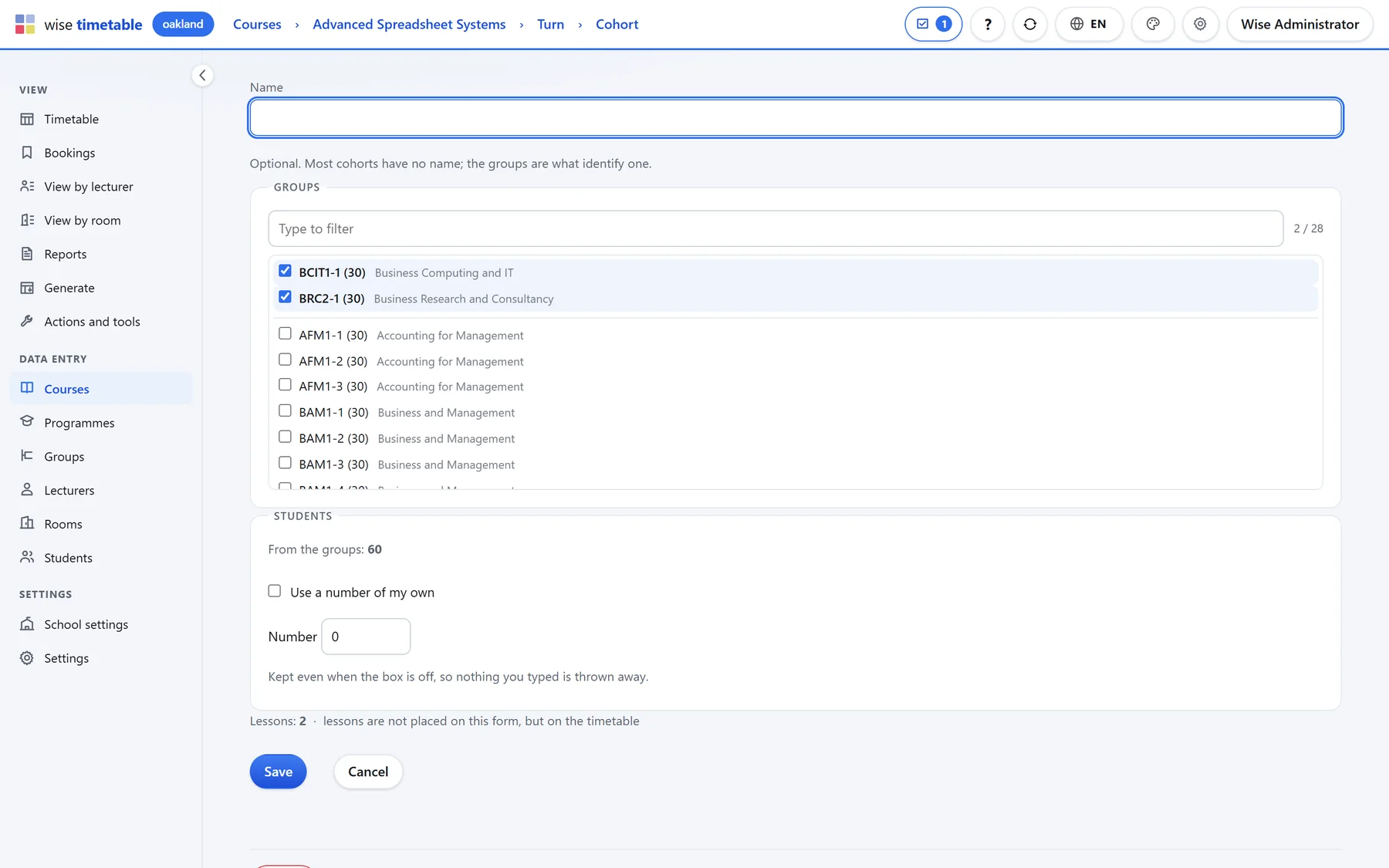
Selecting the student groups of a cohort in the Wise Timetable browser administration
A cohort The groups that sit in the room together — and the number of students the room has to hold.
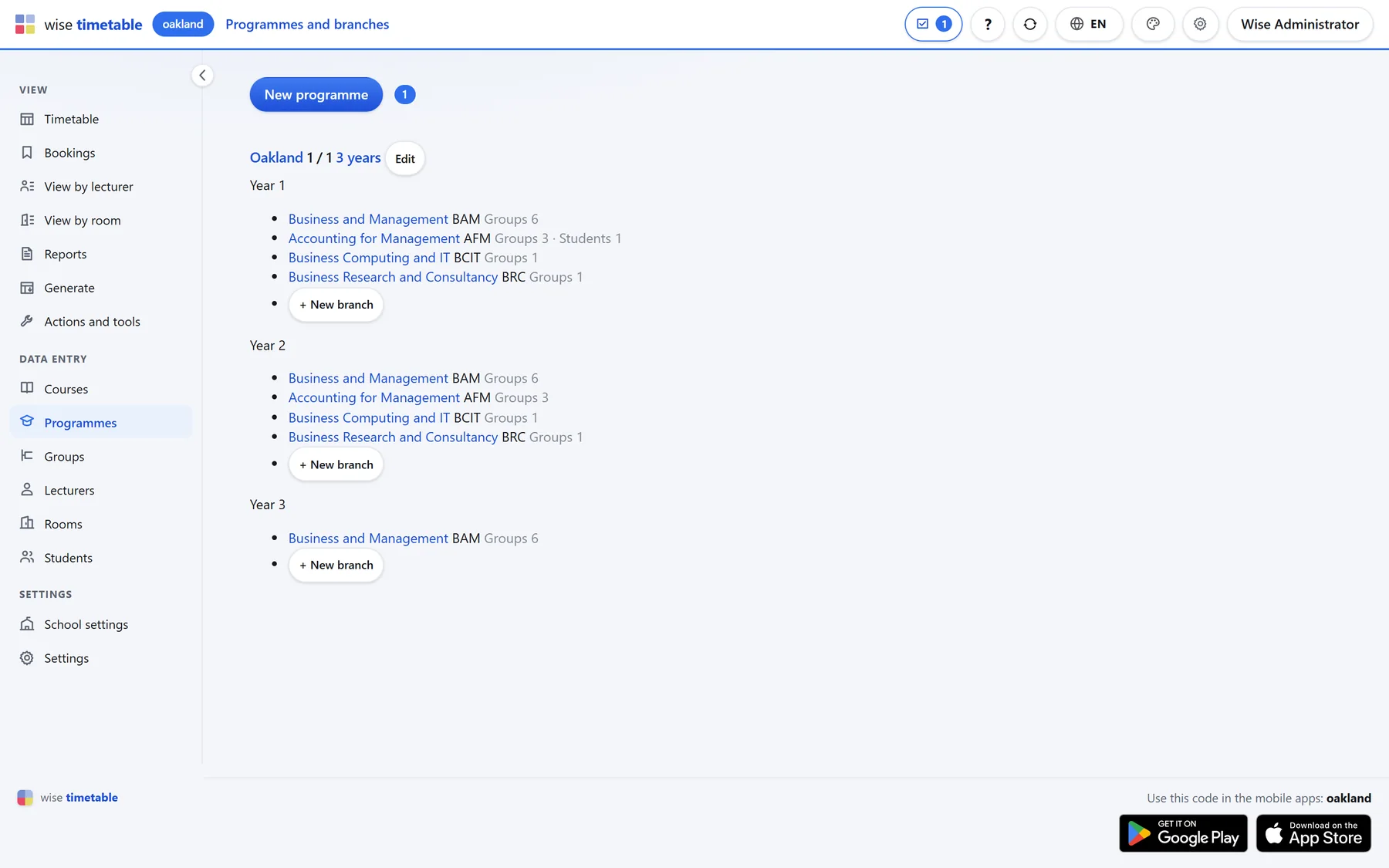
Programmes, years and branches in the Wise Timetable browser administration
Programmes, years and branches The structure everything hangs from, with the groups and students counted under each branch.
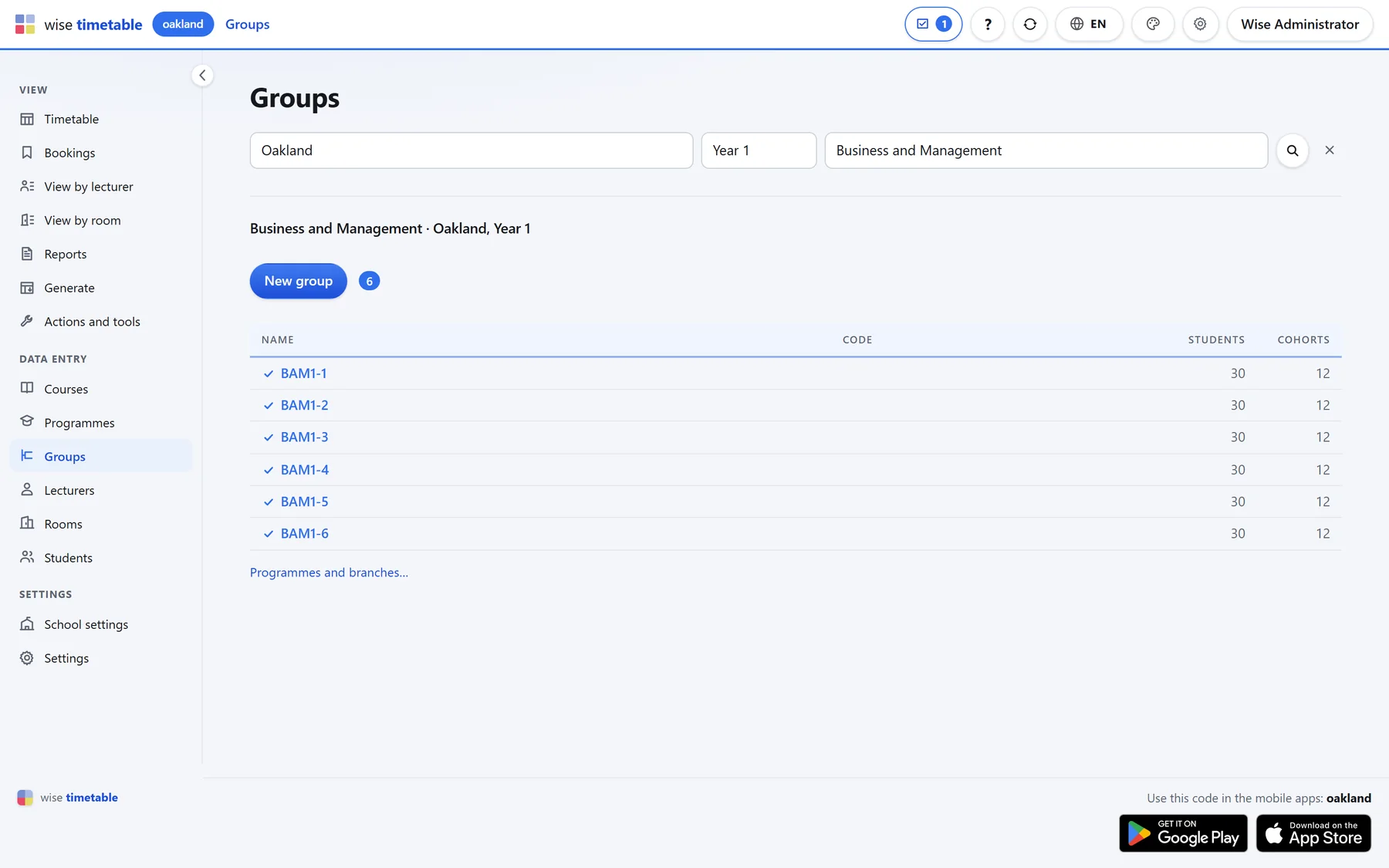
Student groups of one branch in the Wise Timetable browser administration
Groups A programme, a year and a branch narrow the list; each group carries its student count and the cohorts it sits in.
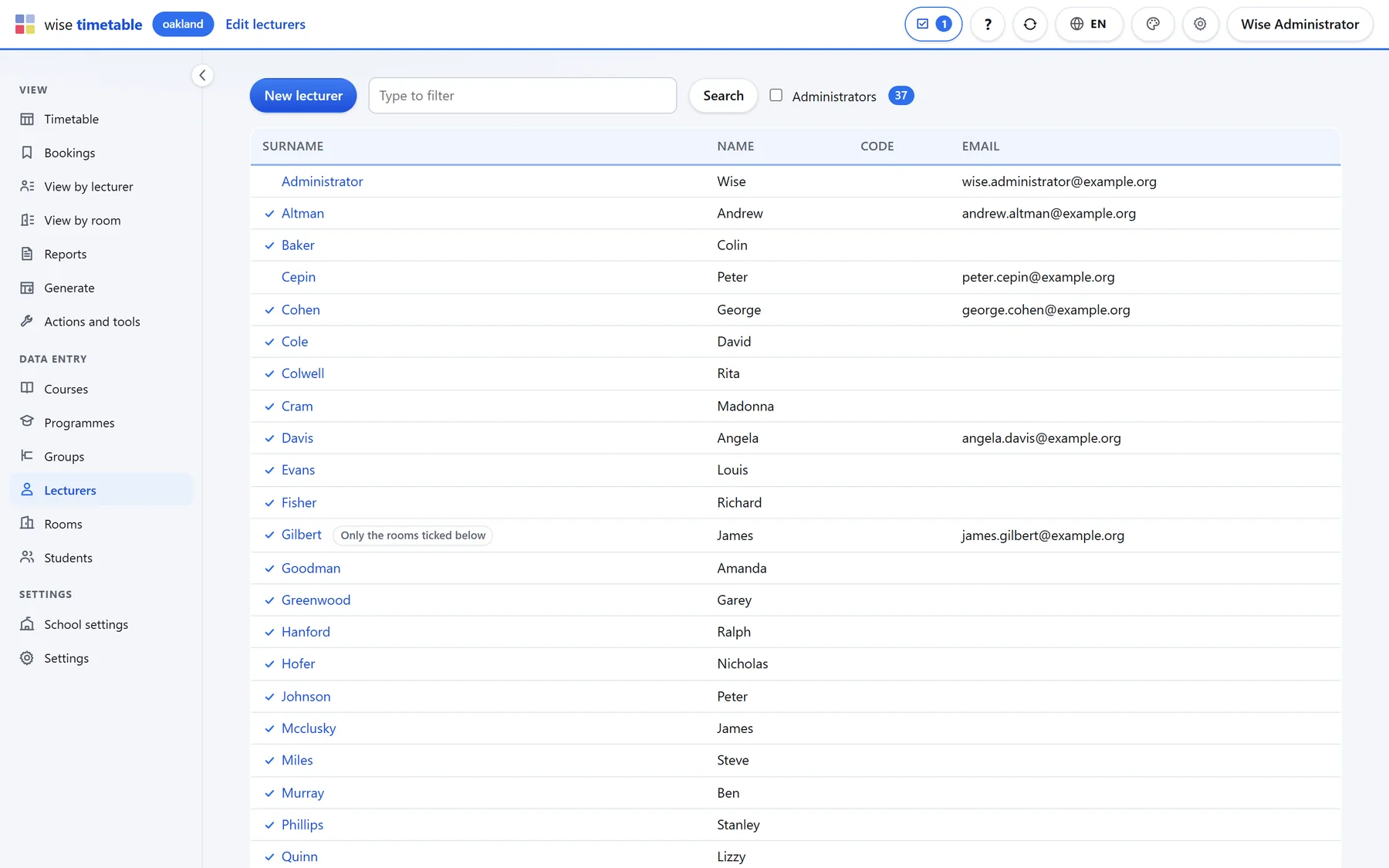
Lecturer register in the Wise Timetable browser administration
Lecturers With the marks that matter: who is an administrator, who may book only certain rooms, who is not available for timetabling.
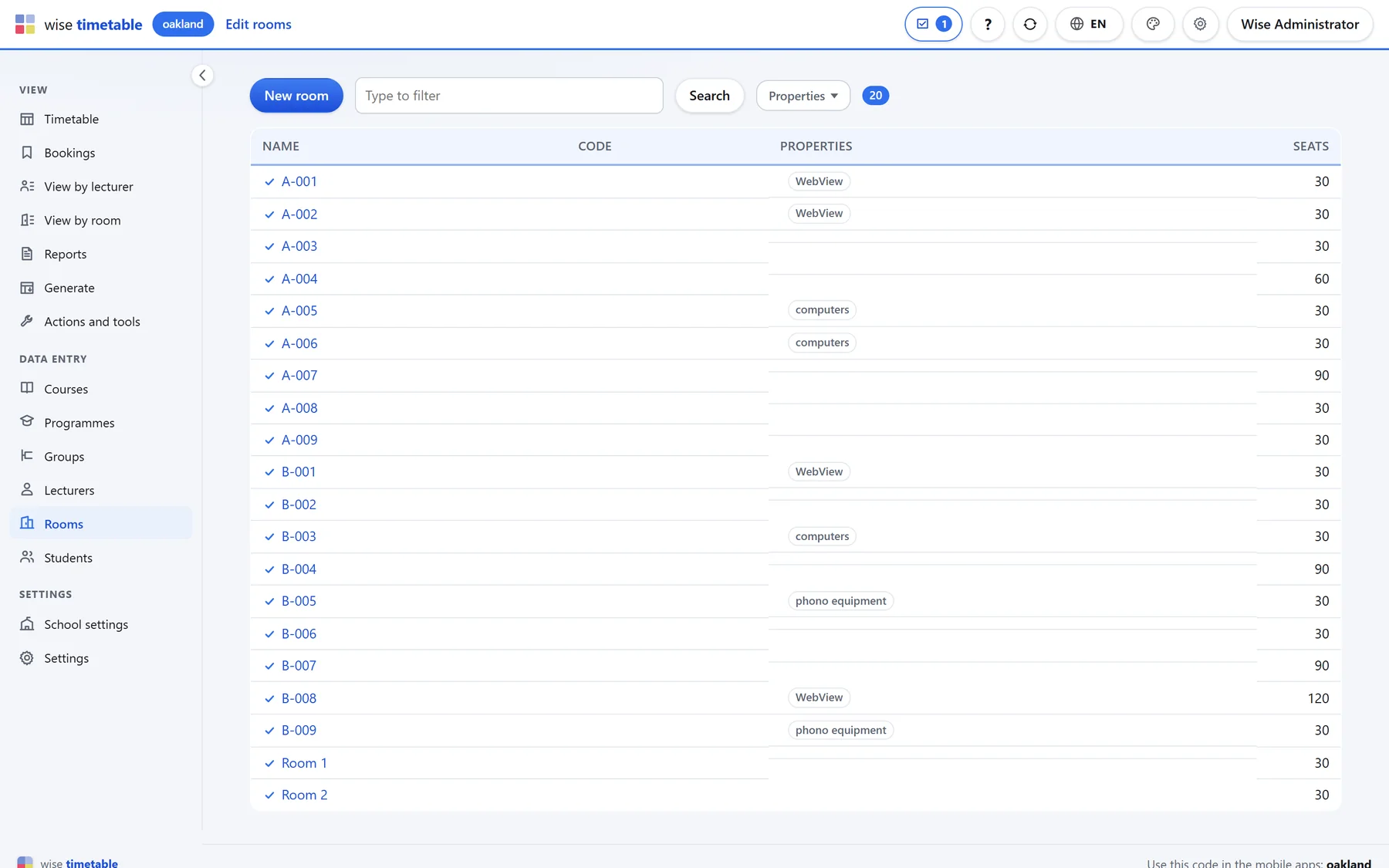
Room register with equipment and seat counts in the Wise Timetable browser administration
Rooms Name, code, equipment and seats — the equipment is what a course’s requirements are matched against.

Generating and reporting

The parts of the job that touch hundreds of lessons at once.
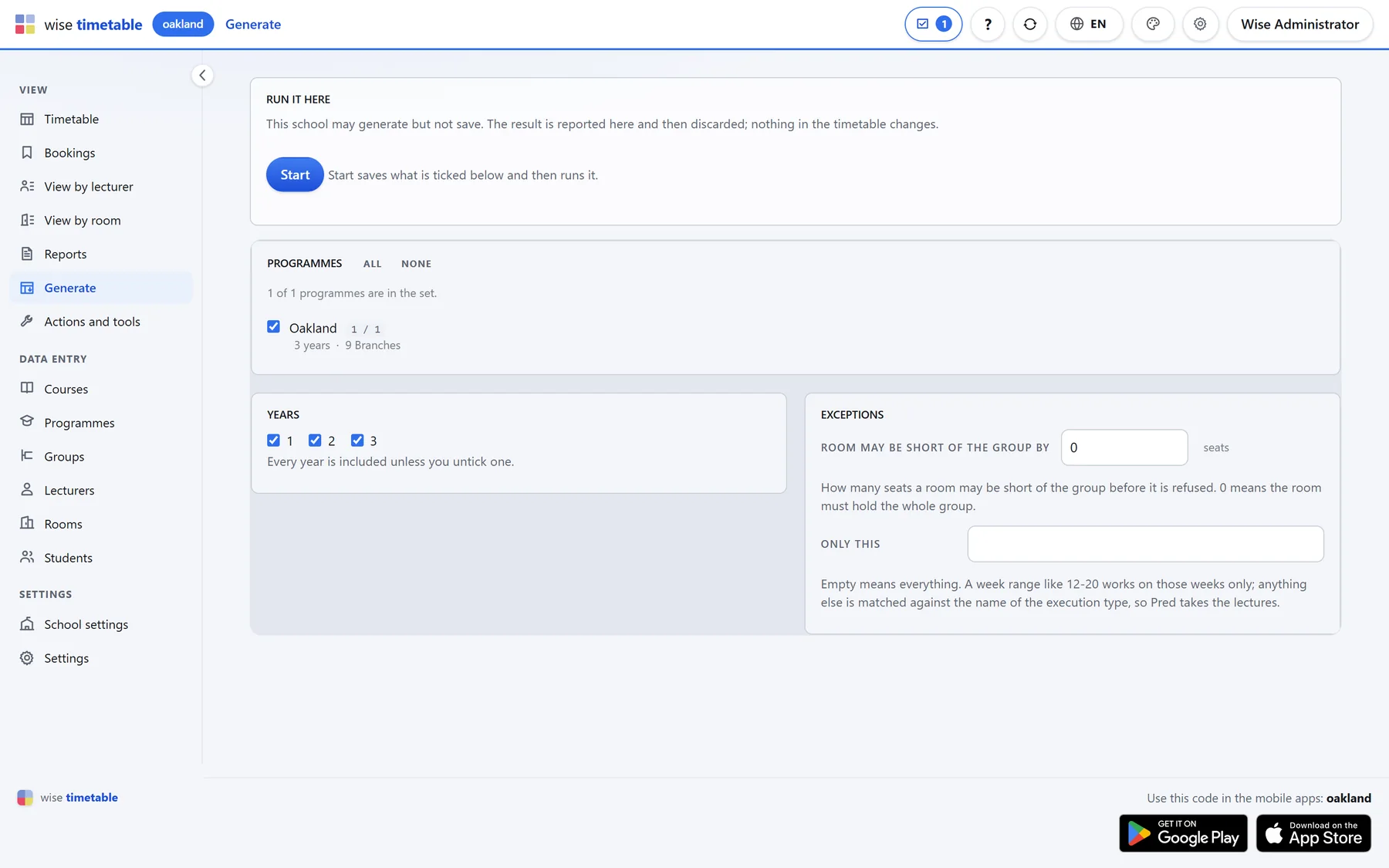
Timetable generation settings in the Wise Timetable browser administration
The generator What is ticked is what will be generated; the exceptions below decide what it is allowed to do.
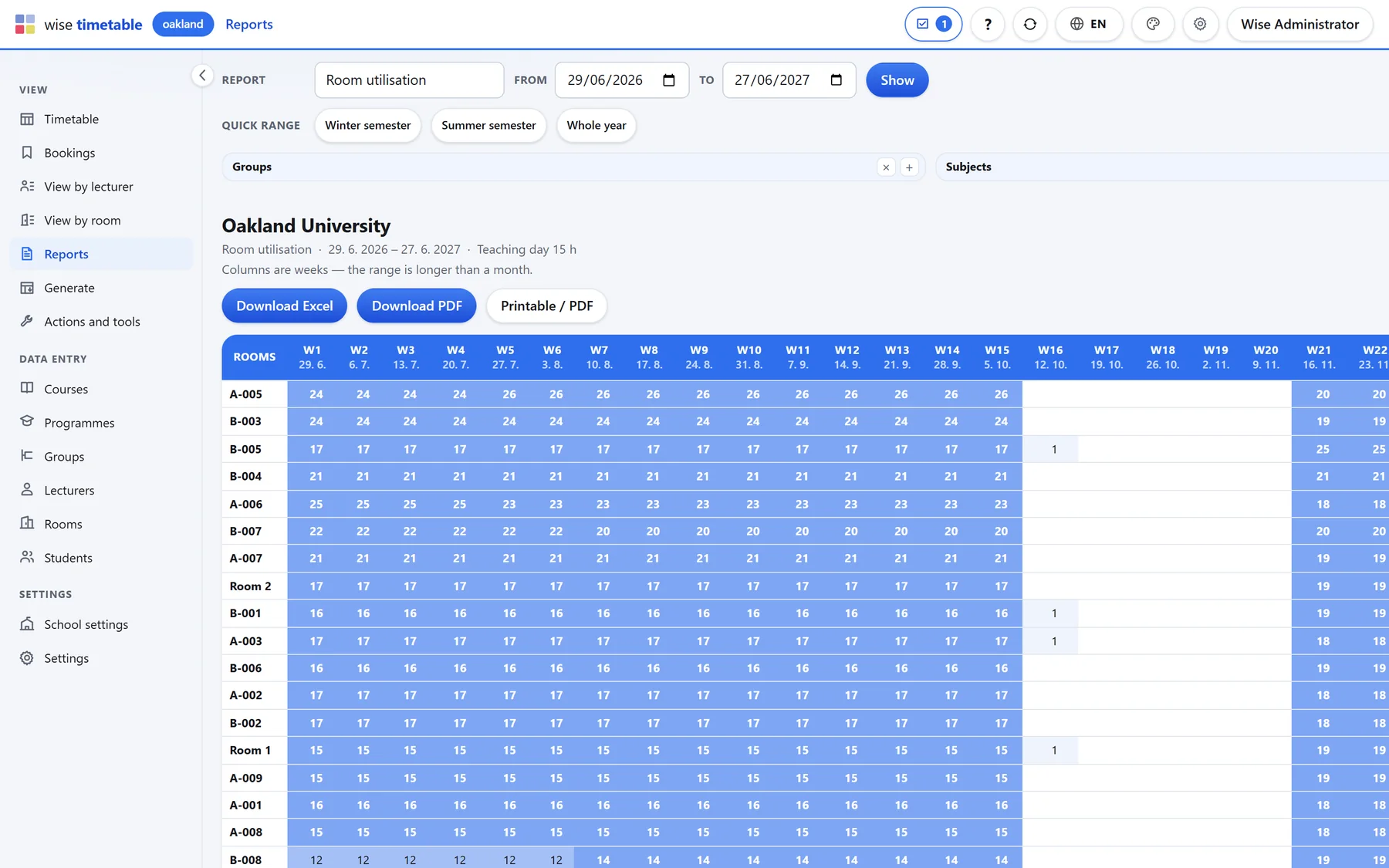
Room utilisation report by week in the Wise Timetable browser administration
Room utilisation One row per room, one column per week. Every report can be taken away as Excel or PDF, or printed.
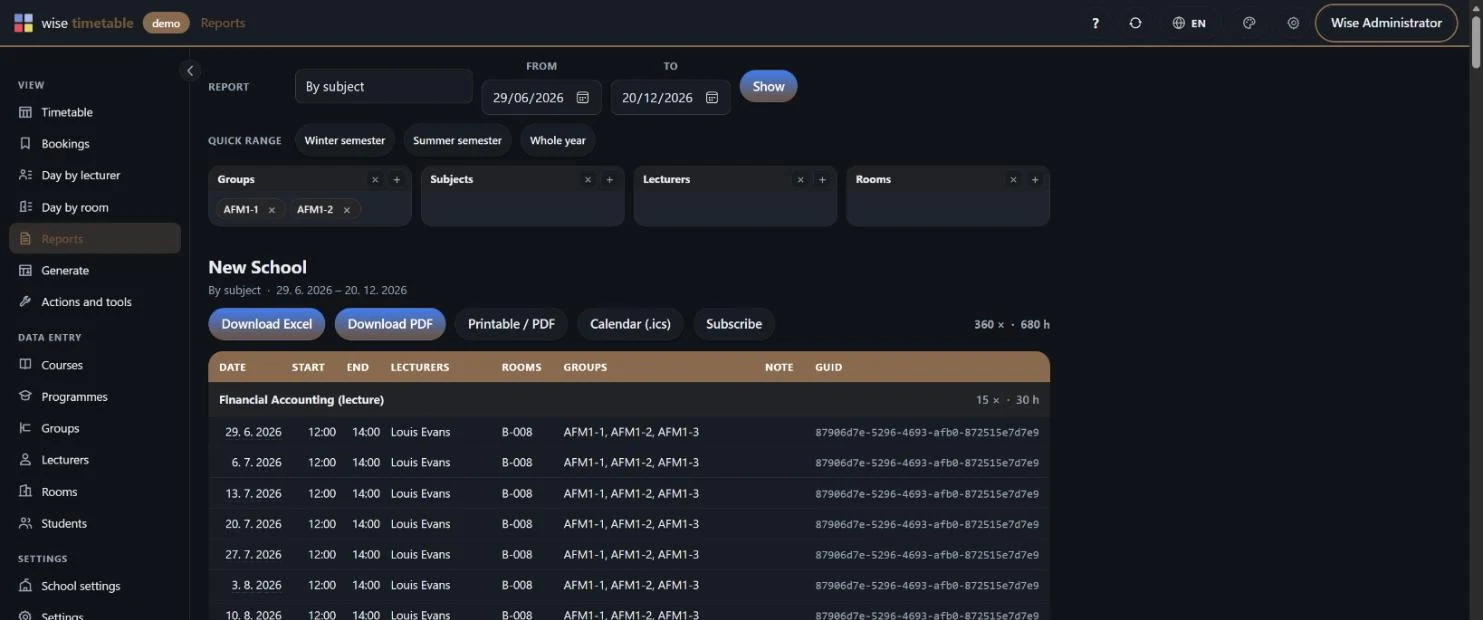
Subject report for two student groups in the Wise Timetable browser administration, dark theme
A report on chosen groups Groups, subjects, lecturers and rooms combined in one report, with Excel, PDF, printable and calendar output. Shown in the dark theme.
Bulk operations in the Wise Timetable browser administration
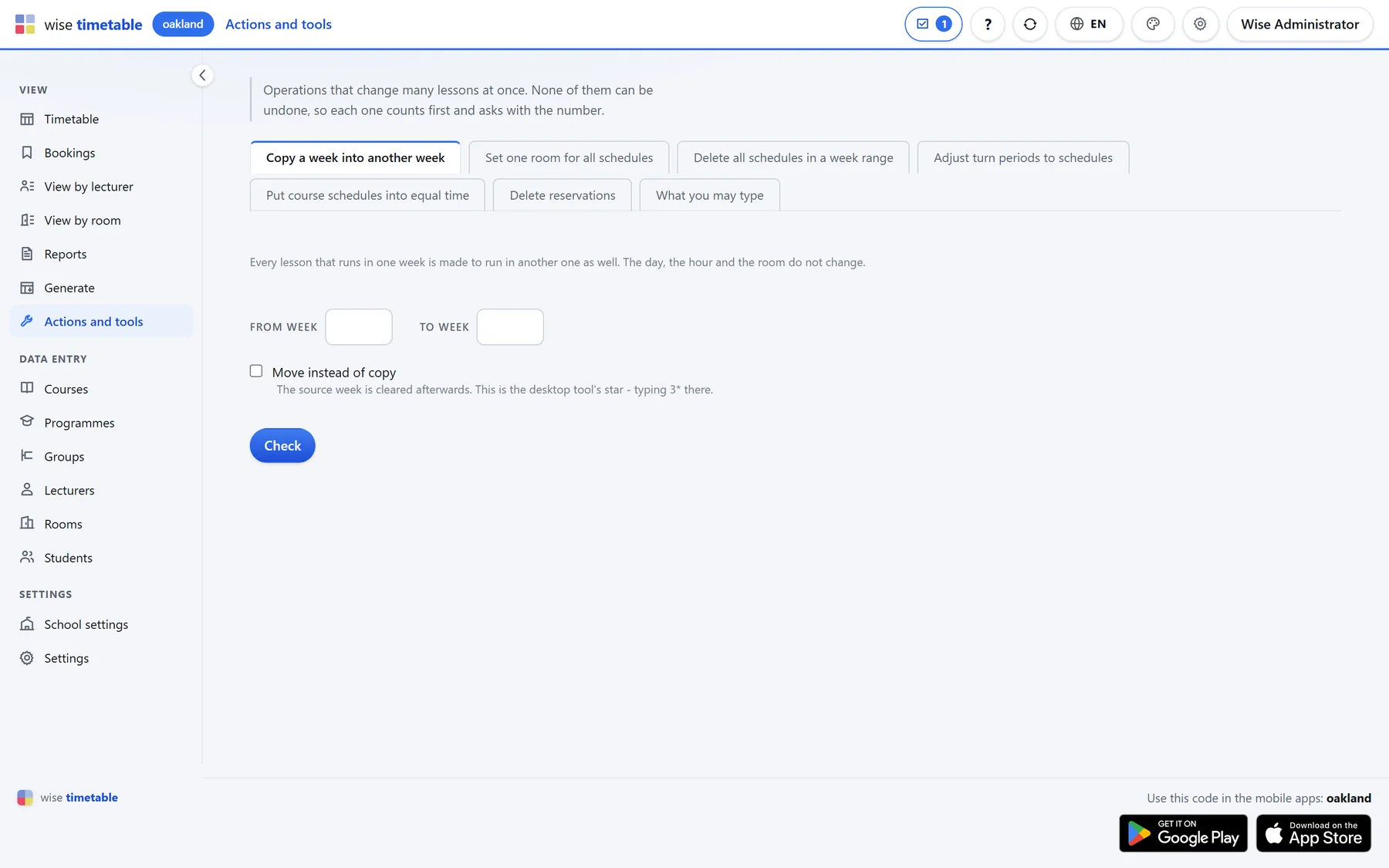
Actions and tools Copy a week into another, change a room everywhere, delete a range of weeks. Each operation counts first and asks with the number.

Settings and themes

What belongs to the school is set once, for everybody. What belongs to one person stays in their own browser.
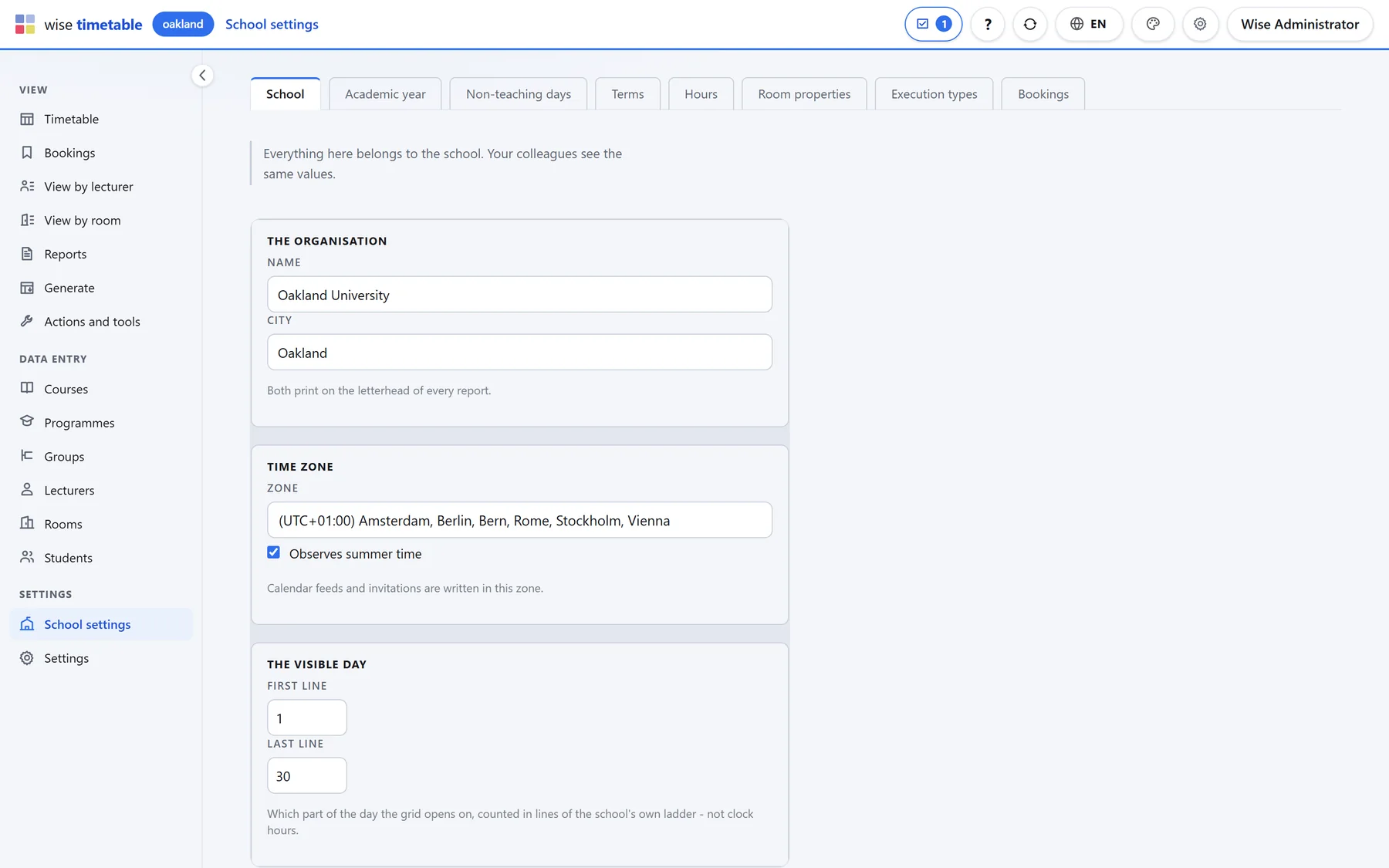
School settings in the Wise Timetable browser administration
School settings The organisation, the academic year, terms, non-teaching days, hours, room properties and bookings — the same values for every colleague.
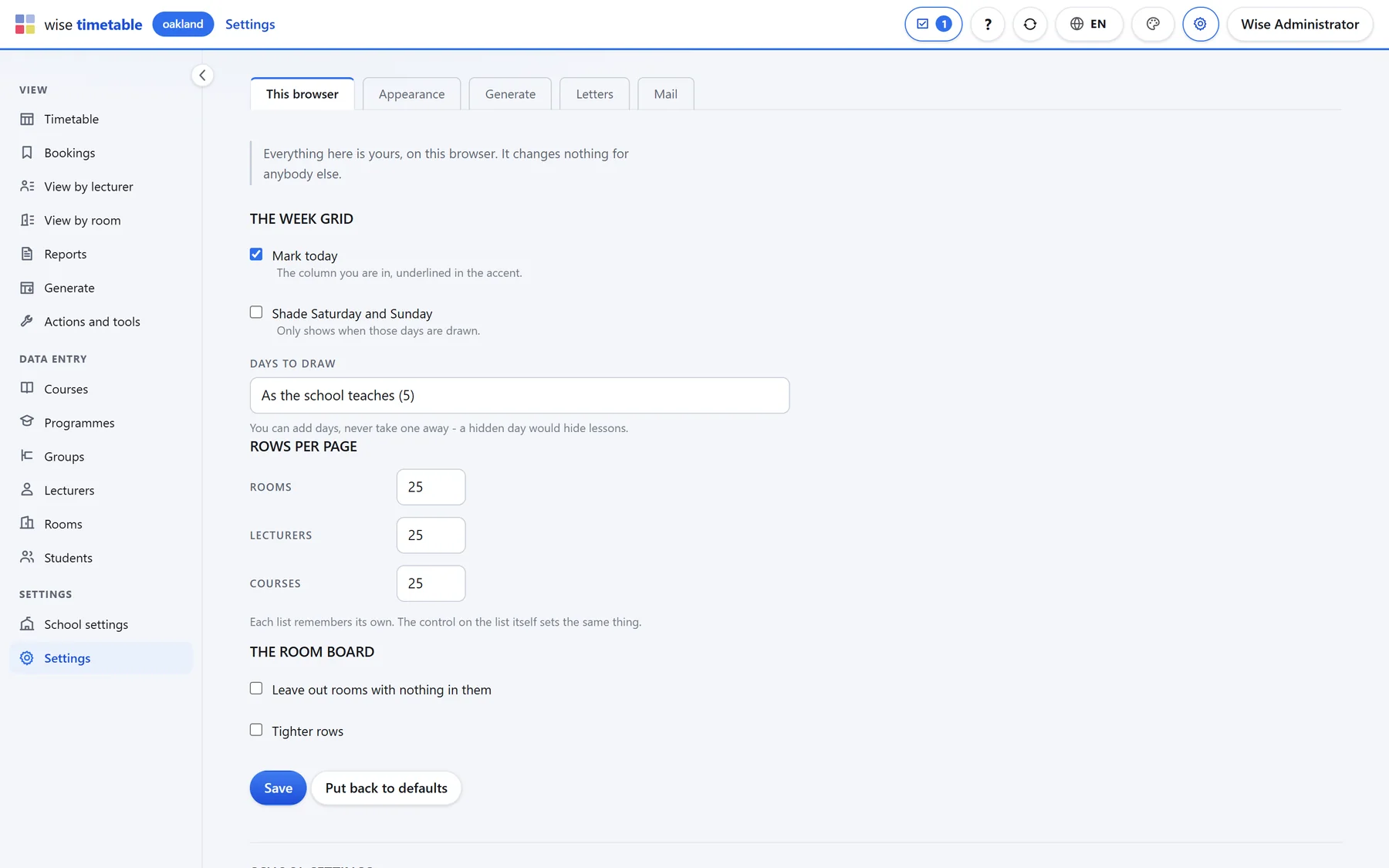
Personal settings in the Wise Timetable browser administration
Your own settings How the week grid is drawn, rows per page and the appearance. They live in this browser and change nothing for anybody else.
Week grid of the Wise Timetable browser administration in the dark theme
Light or dark, per person The same week in the dark theme. Each planner chooses for themselves.
Sign-in page of the Wise Timetable browser administration
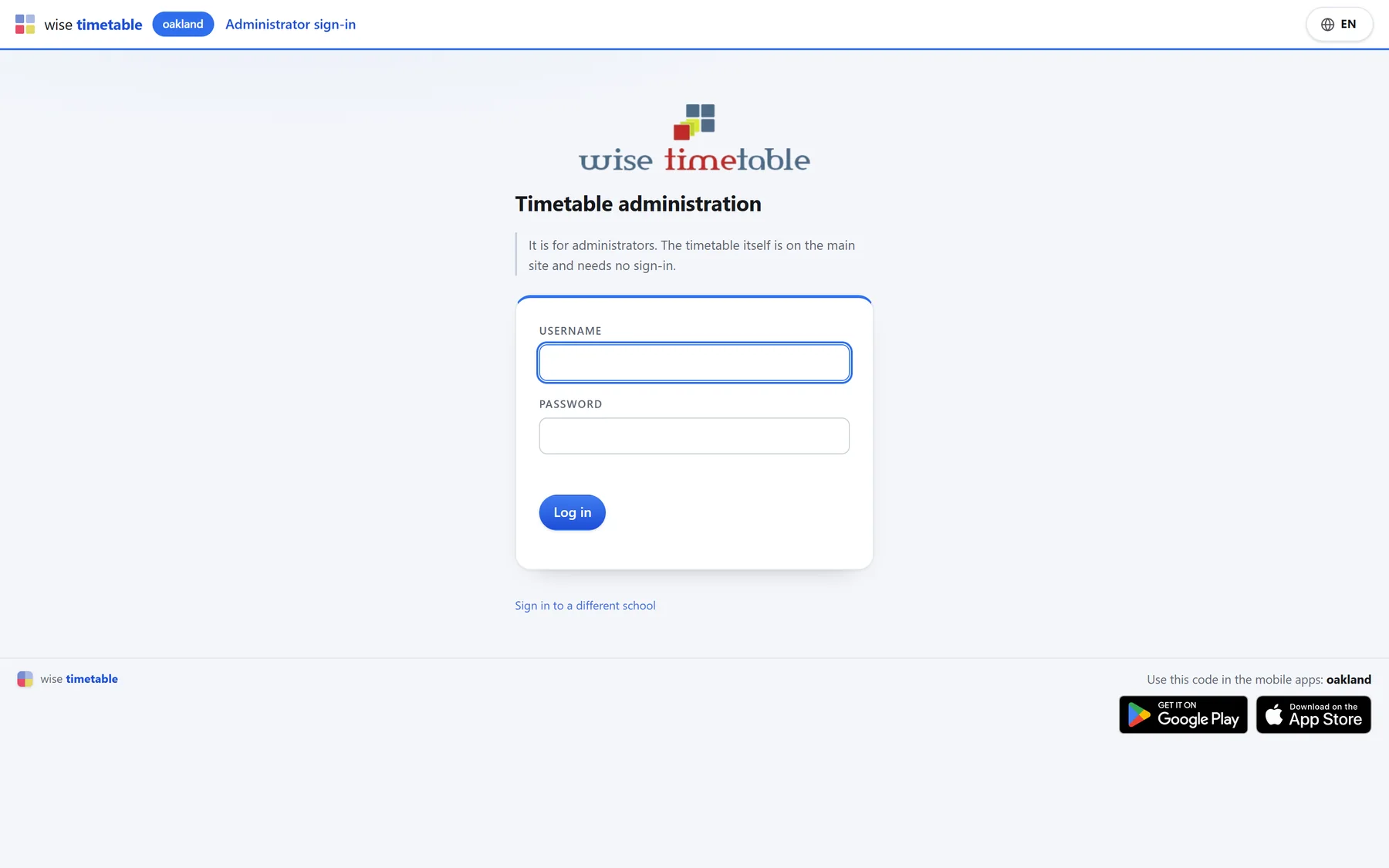
Signing in Only accounts the school has marked as administrators get in. The timetable itself stays public and needs no sign-in.

See Wise Timetable on your own data

Book a 45-minute online presentation. We will walk through your institution's scheduling problem, show how Wise Timetable handles it, and answer anything your team wants to test.