
How-to
Signing in with Microsoft
Where your school has switched it on, you sign in to Wise Timetable with the Microsoft 365 account you already use for Outlook and Teams. There is no second password to remember, and your Microsoft password never reaches us.
Before you start
Signing in with Microsoft works on the web timetable, where lecturers book rooms, and in the browser administration, where a school that runs its timetable office in a browser does its work. It is single sign-on with the account your institution already manages: the same account, the same password, the same approval on your phone as Outlook.
Students are not affected. The timetable never asks them to sign in, so nothing changes for them.
- Your school has switched it on. Until it has, there is no Microsoft button on the sign-in page at all.
- An account your institution issued. Personal Microsoft accounts — outlook.com, hotmail.com, live.com — are refused, and so are guest accounts invited in from another organisation.
- The same address on your lecturer record. Wise Timetable recognises you by the address you sign in to Microsoft with, and it has to be the e-mail address on your lecturer record. If it is not, the timetable office corrects it in a minute.
- Your phone, the first time, if your institution uses the Microsoft Authenticator app.
Signing in, step by step
Four steps, and the middle two happen on Microsoft’s pages, not ours.
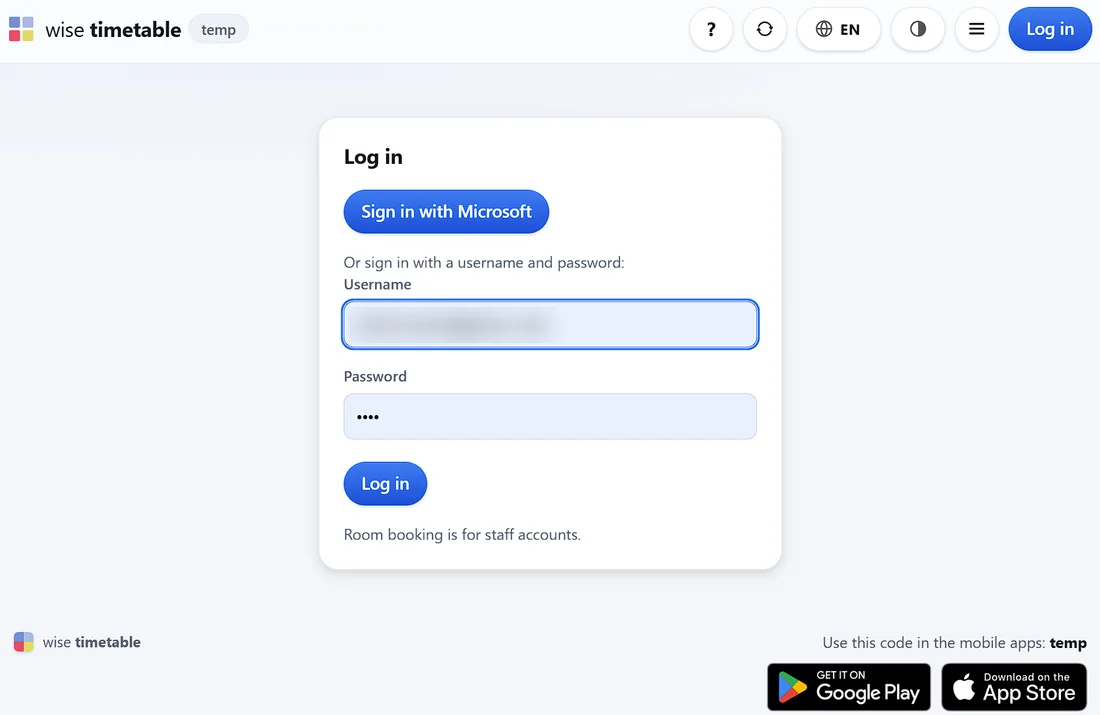
Press Sign in with Microsoft
On the web timetable, Log in at the top right opens the sign-in page; the browser administration opens on it directly. Sign in with Microsoft comes first. The username and password form under it stays for accounts that still use one.
Your account, at Microsoft
Type the address you sign in to Microsoft with — usually your institution e-mail — or pick your school account if Microsoft offers a list. Then your Microsoft password. You type it on Microsoft’s page, and it never reaches Wise Timetable.
Approve on your phone
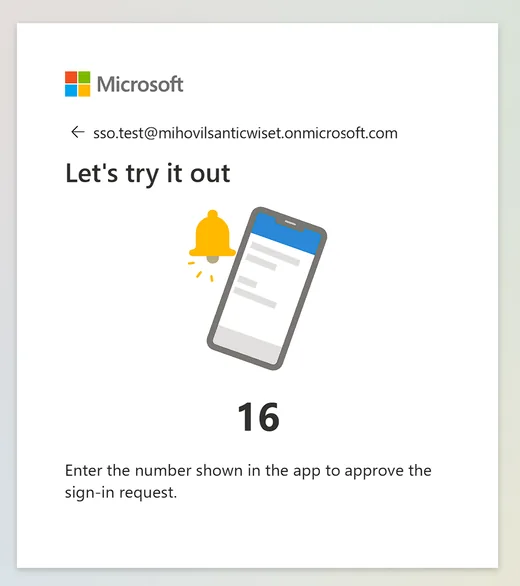
If your institution uses multi-factor authentication, Microsoft asks for the usual approval: a number on the screen, typed into the Authenticator app. How often it asks is your institution’s setting, not ours.
Back in Wise Timetable
Signed in, with your name on the button at the top right. Unless you were on your way somewhere in particular, the timetable opens on your own week. You have exactly the rights your lecturer record gives you, no more and no fewer.
The first time: Microsoft’s own set-up
A new account meets Microsoft’s set-up once in its life, not once per application: replacing a temporary password, then registering the Microsoft Authenticator app — install it on the phone, add a Work or school account, scan the QR code on the screen, and approve a test request by typing the number shown. Which of these you see is decided by your institution’s Microsoft 365 policy rather than by Wise Timetable; some institutions send a text message instead, and some ask for nothing more.
If you already sign in to Outlook or Teams with this account, you have been through all of it and will not see it again. For you, signing in is the button, your account and the usual approval — and if your browser is already signed in to Microsoft, often one click on your account.
The guide for staff (PDF, 14 pages) has a picture of every one of those screens, and can be handed to staff as it is.
Your password, and signing out
After a Microsoft sign-in, the Account screen in the menu under your name has no password form. It says that your password belongs to your Microsoft account: change it where your institution tells you to, often myaccount.microsoft.com, or ask your IT help desk. Neither the timetable office nor we can reset a Microsoft password.
Log out ends your Wise Timetable session, and nothing else. It does not sign you out of Microsoft. On your own computer that makes the next sign-in one click. On a shared computer — a classroom, a library — also sign out of your Microsoft account, or close every window of the browser, or the next person to press Sign in with Microsoft there may find your account already on the list.
Problems on Microsoft’s own pages — a forgotten password, a new phone, an Authenticator that no longer shows requests — belong to your institution’s IT help desk, which manages the account and can reset the phone registration.
If something goes wrong
The sign-in page says what happened in one sentence. Each of them, and what to do about it.
| The page says | What it means, and what to do |
|---|---|
| The Microsoft sign-in was cancelled. | You pressed Back or closed Microsoft’s page. Start again. |
| That Microsoft sign-in had expired or was already used. | It took longer than ten minutes, or the page was reloaded or opened twice. Start again from Sign in with Microsoft. |
| You are signed in to Microsoft as …, but no lecturer at this school has that e-mail address. | Your lecturer record carries a different address, or none. Ask the timetable office to put the address shown in the message on your record. |
| That Microsoft account does not belong to this school. | You signed in with another institution’s account. Choose Use another account at Microsoft and take your school account. |
| That is a personal Microsoft account. | outlook.com, hotmail.com and live.com accounts cannot be used. Use the account your school gave you. |
| That is a guest account in the school’s directory. | You were invited in from another organisation. Only accounts the school itself issued can sign in. |
| Your school’s Microsoft 365 administrator has not yet approved Wise Timetable. | Nothing is wrong with your account. Your IT department approves Wise Timetable once for the whole institution; pass the message on to them. |
| This school signs in with Microsoft – use the Microsoft button. | You tried a lecturer password at a school that signs in with Microsoft only. Use the button. |
| Signing in with Microsoft is not switched on at this school. | It was switched off after the page was opened. Use your username and password, or ask the timetable office. |
| Signing in with Microsoft did not work. | Anything else. Try once more; if it happens again, tell the timetable office the time — the reason is in the server’s log. |
Related
- Setting up Microsoft sign-inFor IT and the timetable office: the one approval, the two settings, and what is checked on every sign-in.
- Signing in with Microsoft, the PDF for staffFourteen pages with a picture of every screen of a first sign-in, ready to hand out.
- The lecturer portalWhat a lecturer does once signed in: booking a room from an empty slot, repeating it, running reports.
- Administration in a browserThe timetable office’s whole job in a browser, for schools that run it that way.
Want to see this working?
Book a 45-minute online presentation and we will walk through it against your institution's own scheduling problem.